


Here's how to watch flash videos on iPad. Apple doesn't support Adobe Flash Player or even Adobe's Flash plugin. However, in this article, you can get some solutions to enjoy flash video on iPad with ease.
- Method 1. Convert the flash video to iPad compatible files
- Method 2. Use another browser which has Adobe flash player plugin instead of the native browser Safari
Method 1. Convert Flash Video to iPad

While your flash videos have been downloaded on your Mac, you actually can use dr.fone for Mac to convert and transfer the flash video to iPad directly:
Convert and Watch Flash Videos on iPad
Step 1: Connect iPad to Mac
When you have installed the dr.fone on your Mac, launch the program and connect your iPad to Mac with a USB cable. Then the program can detect your device and show your iPad information on the main interface.
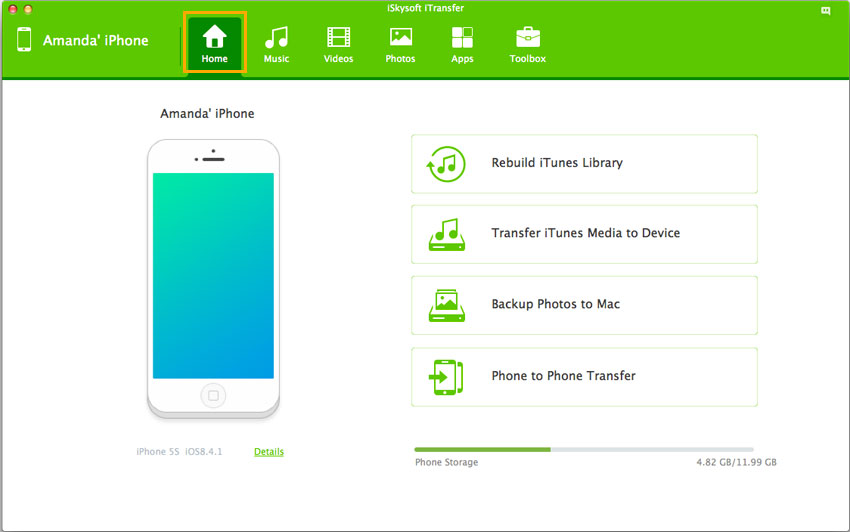
Step 2: Start Transferring Flash Videos to iPad for Playback
Now open the "Movies" tab and click the "Add" button to select the flash videos you want to import them to your iPad. This smart program can detect the files format and convert them to iPad friendly format automatically.
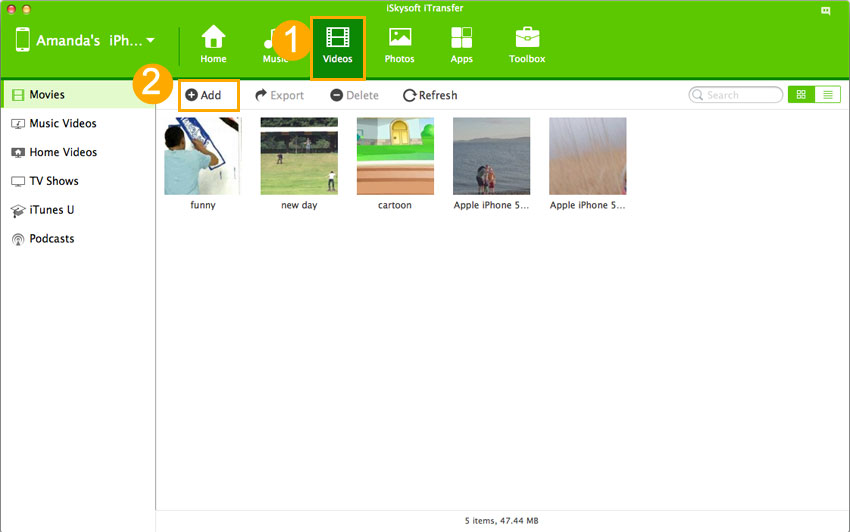
Method 2. Use Another Browser to Watch Flash Video on iPad
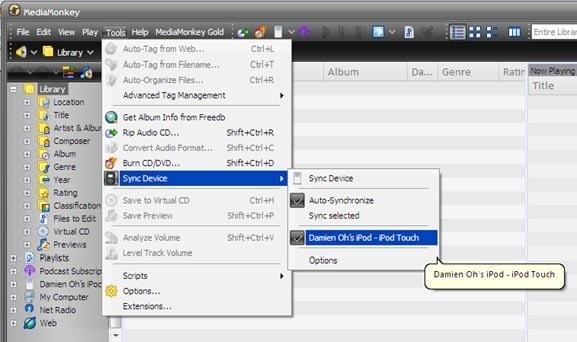
Skyfire is a web browser frequently talked about by iOS users as a great place to play flash videos on iPad, iPhone and iPod touch. It charges you $ 2.99 and can be downloaded in iTunes. Skyfire supports more than 200,000 websites and new ones are added daily. But it will take 10-20 seconds to start each flash video on your new iPad, and you are unable to play flash games and run flash apps with Skyfire – it’s only for watching flash video.