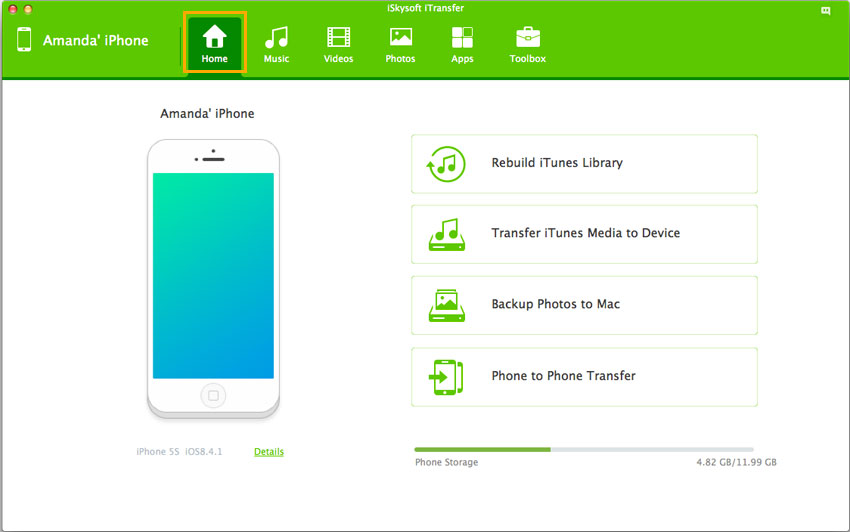


iTunes is a free media library for managing and playing videos. It also lets you sync and transfer files from your Mac onto your portable Apple devices such as iPhone, iPod, or iPad, so that you can play them anywhere and anytime you want. As a whole, iTunes brings the multimedia experience into a new level. As the Apple website says that iTunes has everything you need for entertainment. Here are some useful ways on how you can enjoy your iTunes:
- Part 1. Purchase or rent movies, music and more
- Part 2. Create iTunes library and playlists, organize media files
- Part 3. Play movies, music and more
- Part 4. Transfer iTunes item to iPad, iPhone and iPod
- Part 5. Best iTunes Alternative - dr.fone (All-in-one Phone Manager)
Part 1. Purchase or rent movies, music and more
iTunes Store is a multimedia centre that allows you to watch the latest shows and movies, and to listen to the latest tracks and albums. Some media sources can be enjoyed on iTunes for free, while others need to be purchased or rented before you can use them. iTunes lets you do all these things simply with the use of an iTunes account. Setting up an account is very easy.
• Go to "Store" and select "Create Account" option.
• Then you will get instructions to support you creating iTunes account.
• Read the terms and conditions for registration carefully. And check "I have read and agree to these terms and conditions" option then click "Agree" to go to next step.
• Register with your email which will be your Apply ID. And set your login password. Then hit "Continue".
• Select a payment method and input your billing address.
• You will get an account verification email. Log in your email and click the verification link to go to verification page. Then input your registration email and password to verify your account.
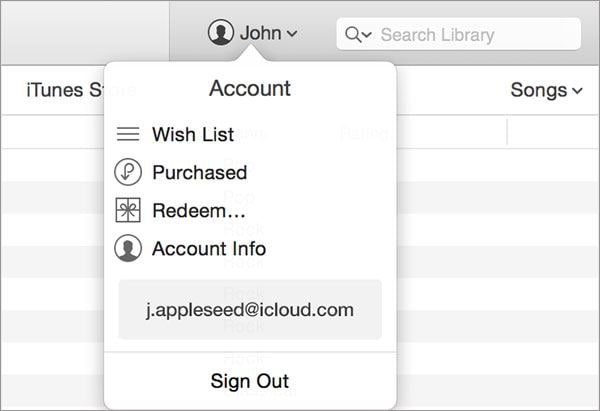
Now your Apply ID has been created. When you log in your account, you can easily access your favourite songs, movies and more. iTunes Store provides you with millions of songs, movies and apps. You are able to search for your favourite item by inputting the keyword to the search box. Alternatively, you can directly click any category to show media list.
Part 2. Create iTunes library and playlists, organize media files
iTunes is regarded by users as a great app for organizing media files. You can import your movies, songs and more to the iTunes library. To do so, you can navigate to the "File" menu and select the "Add to library" option to load your music or movies to iTunes library.
Note: You can only import the media files in iTunes compatible formats like MP4, M4V, MOV, MP3, AAC, MAV and AIFF. If you have got files in formats such as AVI, FLV, MKV, WMV or WMA, you have to first convert the audio or videos to iTunes.
To create new playlist, you can go to "File" menu and select "New Playlist" option. Alternatively, you can click the "+" button at the bottom of the iTunes interface to create new playlist. If you have multiple playlists with the same music style, you can select "New Playlist Folder" option, and give a name to the folder, then drag and drop your created playlists to the folder for organizing.
More tips:
• How to Copy Playlist from iPod/iPhone to Mac
• How to Share iTunes Playlist with Others on Mac
Part 3. Play movies, music and more
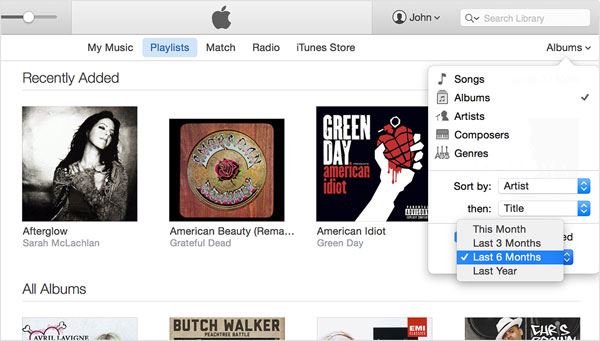
After the media files added to your iTunes library, you can double click the item to play them. You can turn shuffle on or off to play your music or playlist by clicking the shuffle icon at the left bottom of the iTunes interface, or play your playlist once, repeat playlist or repeat your media files by choosing the repeat icon.

Part 4. Transfer iTunes item to iPad, iPhone and iPod
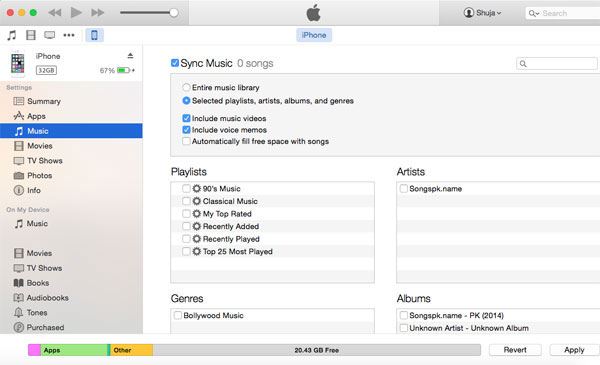
iTunes can also be regarded by users as a good transferring tool for iDevices. You are able to sync movies, music, photos, TV shows, ringtones, playlists, books, apps and more to your iPhone, iPad or iPod. Take transferring movies to iPhone on Mac OS X (El Capitan included) for example:
- Connect your iPhone to Mac with USB cable.
- Launch iTunes, and you will see your iPhone ID under the "Devices" tab.
- Click the "Movies" tab and select your desired movie, then drag and drop it to the name of your iPhone ID. The movie will be synced to your iPhone immediately.
Download dr.fone to have a try!
Video Tutorial: Transfer iTunes item to iPad, iPhone and iPod
Part 5. Best iTunes Alternative - iSkysoft dr.fone (All-in-one Phone Manager)
iTunes is a great manager for iPad and iPhone users. However, it is a one way transfer tool - from computer to iPhone/iPad/iPod. And your iPhone, iPad and iPod can only synced with the same iTunes Library all the time. Otherwise, all existing files on the iPhone, iPad and iPod will be erased right away. To solve the issue, you can try iSkysoft dr.fone. It is software let you transfer videos, photos, music between any computer, iPhone, iPad, iPod and Android phones.
- 1 click to copy all music from iPad/iPhone/iPod/Android device to iTunes Library.
- 1 click to transfer media files from iTunes Library to iPhone/iPad/iPod/Android device.
- 1 click to backup all photos from iPad/iPhone/iPod/Android device to computer.
- Transfer files between 2 phones, iPhone and Android phones fully supported.
- Copy selected music, videos and photos from iPhone/iPad/Android/iPod to iTunes Library/computer/another device.