
- Part 1. How to set up and sync Google calendar with your iPhone
- Part 2. How to sync multiple Google calendars with your iPhone
- Part 3. How to sync shared Google calendar with your iPhone
- Part 4. Google calendar won't sync with your iPhone? Fix it
- Part 5. How to sync iPhone calendar back to Google calendar
Part 1. How to set up and sync Google calendar with your iPhone
You may want to sync your Google Calendar with your iPhone in order to have access all the time and on any device at your Events. You can use Google Calendar to have in one place all events and notices related to Birthdays, Reservations for flights, restaurants, spa salons, and any important date from your life. Once you have entered all important Events into your Google calendar or the Events were included automatically via your Gmail account, you may want to have them all in your iPhone also.
In order to sync your Google Account with your iPhone, follow this step-by-step guide:
1. First step is to open your iPhone and go to your device's home screen.
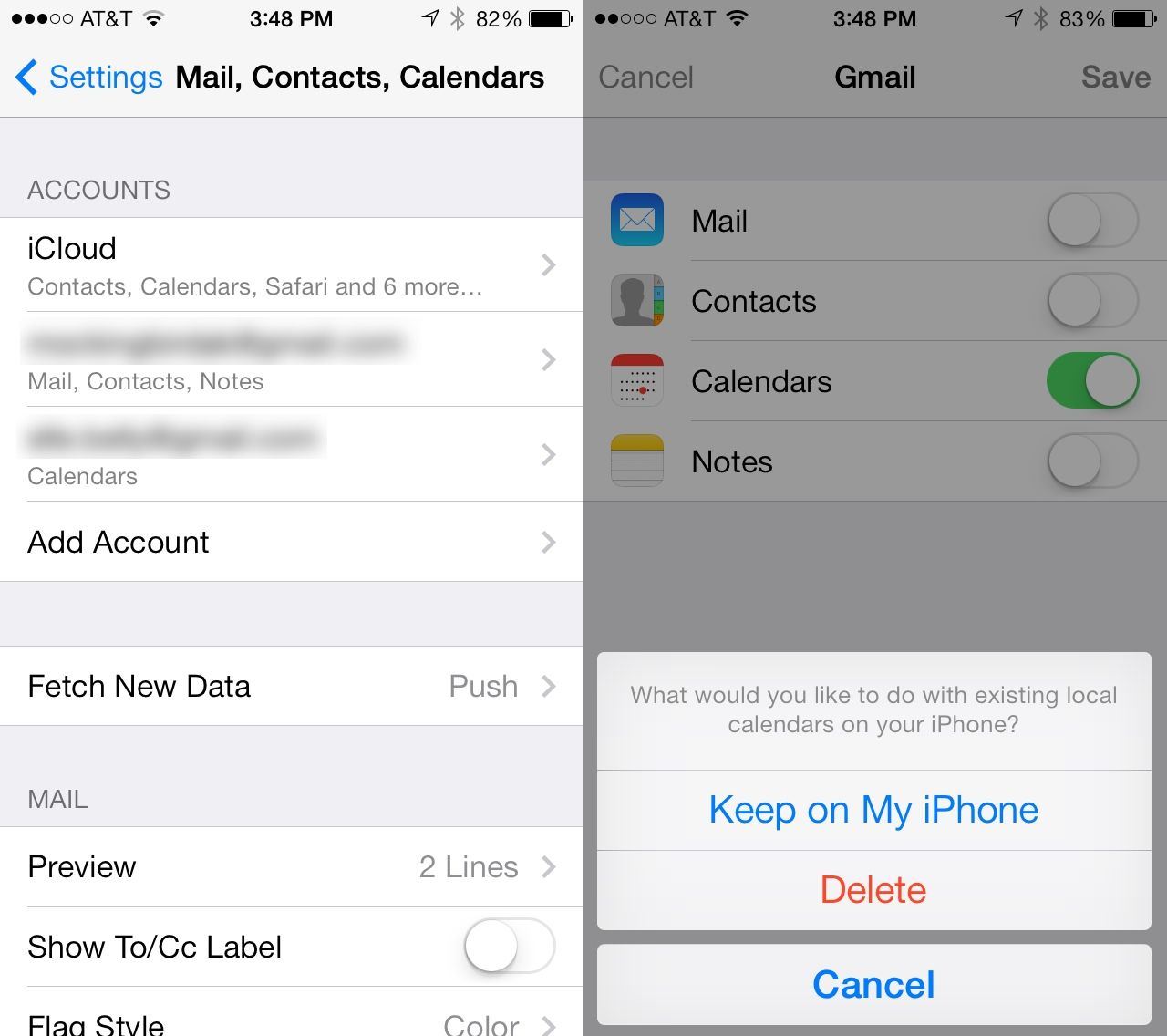
2. Next, go to the Settings and choose Mail, Calendars, and of course any items that you wish to be synced. There you can see “Add Account” and select “Google”. Just enter your logins, your name, your Gmail address and your password. Click on “Next”.
3. All your emails and calendar events from your device will now sync directly to your Google Account, if you selected the Mail tab and Calendar tab, for example.
If you wish to sync only your calendar, turn the others “Off”. This way, only feature that will be synced, it will be your Calendars.
You should open Calendar into your iPhone to verify that it was synced.
Part 2. How to sync multiple Google calendars with your iPhone
At first syncing of your Google Calendar with your Google Account, you will be able to see all your calendars from your computer on your iPhone. Always you have the option to hide and / or stop syncing certain calendars.
In order to change which calendars display or sync follow the steps below:
1. Go to your iPhone's home screen and open any Calendar. Select "Menu" and then "Calendars to display".
2. You will be able to see a list of calendars synced with your device. If you wish just to hide a calendar, without stopping it from syncing, uncheck it.
3. In order to change which calendars sync with your device, select "Calendars to sync". You need just to check or uncheck the calendars to sync. Final step is to click on "OK".
You should open Calendar to verify that it is syncing.
There is a limited number of calendars that can be synced. Google Sync is able to sync up to 25 Google Calendars with the Calendar app on your iPhone. You must select the language from your iPhone and set it to English (US) to sync multiple calendars.
You can select the calendars to sync to your iPhone by following the steps bellow:
1. Open your browser, like Chrome or Safari, on your device and go to https://m.google.com/sync/settings/.
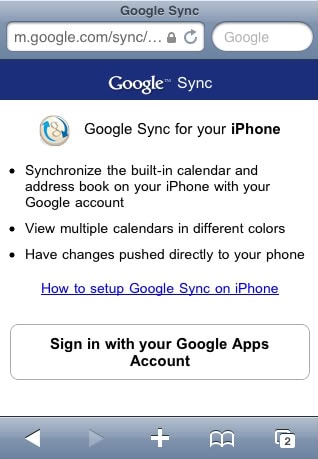
2. You must to select "Sync" and sign in with your logins.
3. Next step is to select your device from the list of devices you have set up for Google Sync.
4. Final step is to select the calendars you want to sync and click on "Save".
Part 3. How to sync shared Google calendar with your iPhone
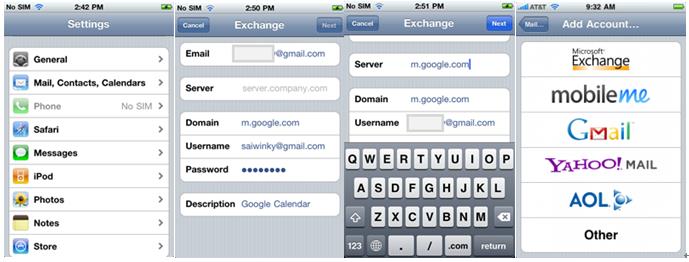
You have multiple options to sync your shared Calendars, including Google Apps for Business by paying a monthly fee. Another option is to set up your Gmail account as an Exchange account. This way you will be able to sync your calendars, but by default it will only sync your primary Calendar.
In order to add more calendars on your iPhone just open the Safari browser on it and visit http://m.google.com/sync. Follow the steps below to sync your shared Google calendar with on your iPhone:
1) Open the Safari browser on your iPhone. Go to the m.google.com/sync.
2) Enter your logins for your Google account. You will be able to see the devices and you should select your iPhone for syncing shared Calendar also.
3) Choose the shared Calendars that you wish to sync with your iPhone.
Open your calendars and you will be able to see your multiple calendars listed under your account instead of just the primary one you had before. If any issue occurs, tap the refresh button or just wait a few minutes to pull in your new calendars. This should be sufficient, but if the problem persists and your calendars still do not show up, go to your settings. There, you should remove your Gmail account and then add it again.
Always make sure that you have been checked all your needed shared Calendars! If you wish just one Shared Calendar to be synced, then you should check just the checkbox related to "Work Calendar" (or your [name] Calendar).
Part 4. Google calendar won't sync with your iPhone? Fix it!
If you manage carefully all the steps for syncing your Google Calendar with your iPhone, you should not receive any bug. But, in a few cases it might occurs issues when you wish to open your google Calendar on your iPhone.
It is possible to encounter errors when using Google Sync for iPhone. Below you will find a list with possible errors and ways to fix them:
#1. Errors with Accepting / Declining Events
Most of issues with Calendar are with Accepting and Declining events. You should know that iPhone is not able to Accept/Maybe/Decline events from invitation emails received through POP3. As a general fact, by accepting an Event invitation from Google Calendar this does not dismiss the existing event invitation on the iPhone.
#2. Errors with Secondary Calendar
Secondary calendar events with invites are read-only on iPhone. Thus, your iPhone cannot Accept/Maybe/Decline events on secondary calendars. You should be always careful to use the primary calendar in order to accept or decline invites.
#3. Comments are not synced with Google Calendar
The page Accept/Maybe/Decline has a field to Add Comments. Anyway you should know that the changes you make in this field, will not be synced with Google Calendar.
#4. Errors with Recurring Events
It might occurs several problems with the recurring events, like Attendee status changes isn`t syncing. If you are invited at many recurring events, select "Save for all events" after Accept/ Maybe/ Decline will only apply the change to the one selected event.
#5. Duplicate Event
Duplicate event created when changes are made across daylight savings time, it might occur when you make changes for an instance of the recurring event after the first event and remove the attendee, by selecting "Save for future events". Sometimes, your iPhone doesn't correctly make these changes. Thus, it can happen that you have two overlapping separate event series created in one day. You should know that it could happen for events created in the GMT time zone when the series of events spans a Daylight Savings Time boundary. If you create recurring events in June, and you make a change to an instance of the events in December, your iPhone will show you both events: the original event and the changed instance in the Calendar application.
Part 5. How to sync iPhone calendar back to Google calendar
Many iPhone users have difficulties to sync their iPhone calendar back to Google calendar. If you can imagine, there is just simple steps to follow and all issues are away!
In any case you have two options to sync iPhone calendar back to Google calendar. Both methods are conducted via two links that you will find them below with easy instructions to use.
1) Open your iPhone and visit https://www.google.com/calendar/iphoneselect. By accessing this link, you can enable all calendars that you need.
2) Go to your iPhone`s Settings and select "Mail", and then "Gmail Exchange". You should disable and then re-enable Calendars.
3) If you still have just one Calendar, then you should go to this page: https://m.google.com/sync/settings/iconfig/welcome?source=mobileproducts&hl=en. Here, you need to select each device and again select additional calendars.
4) Go again at your Calendar and voila, you have all your Calendars there! After the process is finished, just check that your calendars are synced back to Google Calendar.
Another way to find in a very easy way your iPhone Calendar into Google Calendar, it is to check if Calendars is on in your Gmail Account in Settings. Make sure the default calendar is your Gmail one and then make sure each calendar entry is listed as your Google Calendar.
The best way to get to Default Calendar is to go to your "Settings", select "Mail, contacts, calendars" and scroll all the way down to Calendars, then default calendar and then check the name of your calendar under the Gmail. Just make sure that is not checked the one under "On my iPhone".
