/ Posted by to
Download & Install UniConverter.
UniConverter is a professional conversion tool that supports more than 150 formats for the conversion tasks. In addition to the conversion, other supported features of the tool include batch processing, video editing, video download, transfer, etc. To help you accomplish various tasks using the software in a hassle-free manner, the step-by-step guide is given below. So let’s get started with the UniConverter guide.
Note: The following guide lists the steps based on the Windows version of the software. Though the steps on the Mac version are almost similar, we will make a note where there are changes.
Part 1. Download & Install
Step 1
Download UniConverter
Open the Home Page on your computer and then click on the Download Now button.
Step 2
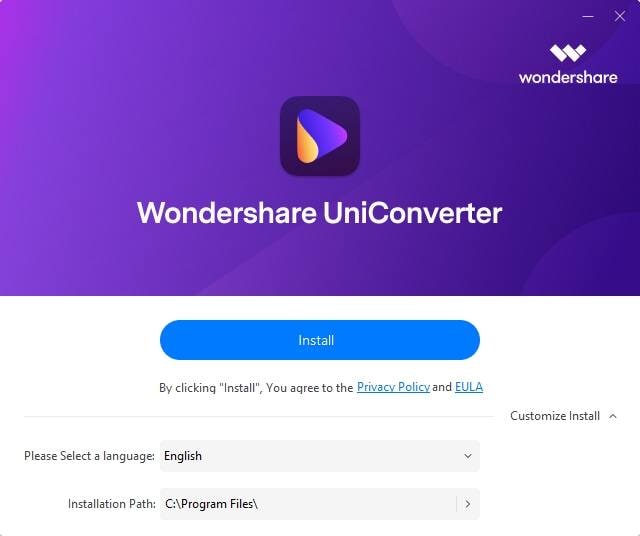
Install the software
Double click the downloaded installation packge.
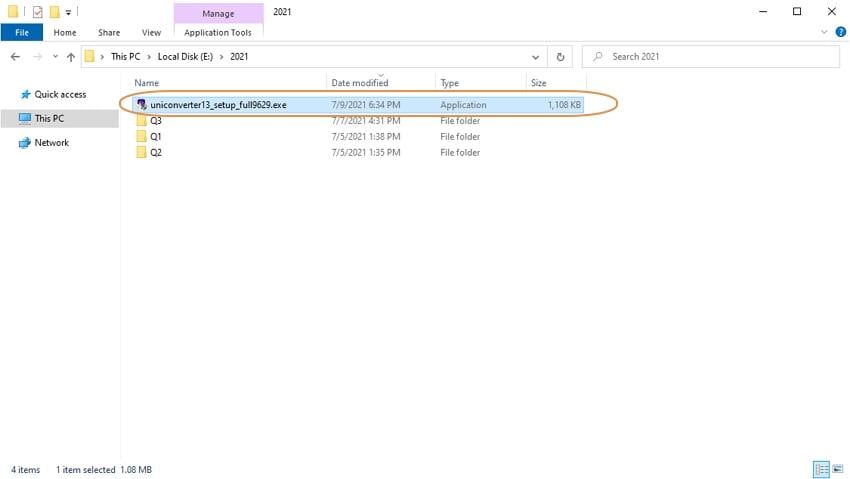
From the pop-up window, select your preferred language and click OK. Then click the Next bouton, choose "I accept the agreement", selct the location of instalation, and then click Install to start installing.
Step 3
Launch UniConverter
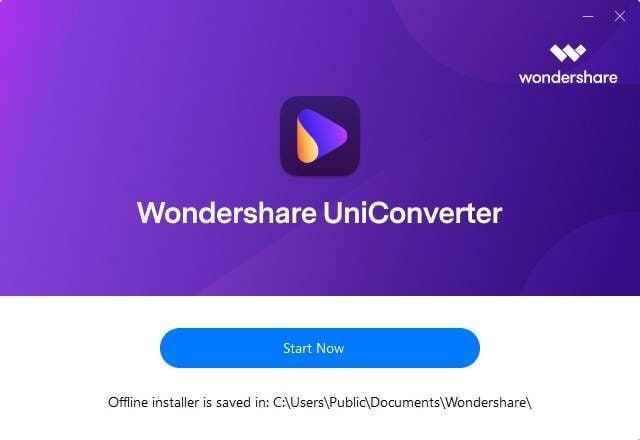
Once completed, click on the Finish button to launch the program.
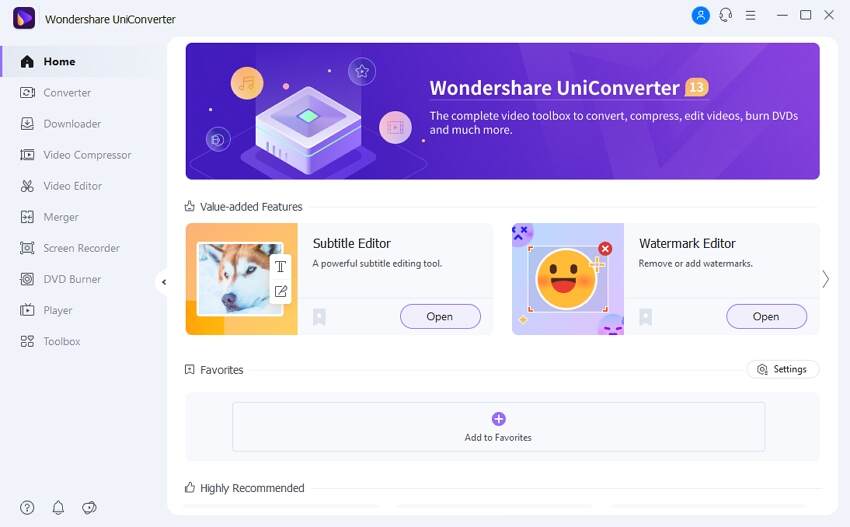
The following is the main interface you'll get.
Part 2. Register & Update
1
Login UniConverter with Wondershare ID
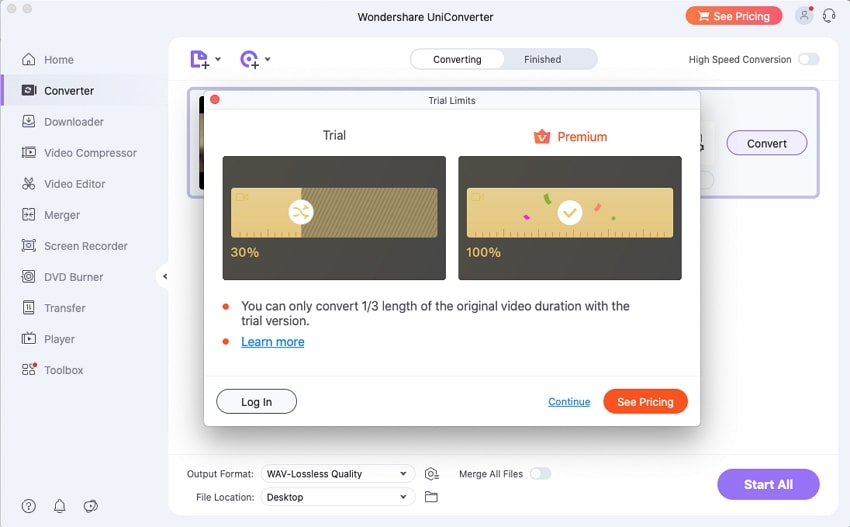
UniConverter comes with a free trial version that helps the user to get the feel of the software and know about its functioning and features. The free version though has several limitations, which can be seen in the below image. So after using the trial version, if you feel that UniConverter is apt software for your requirements, you can purchase the plan and enjoy functions without any restrictions.
If you want to enjoy the full features without any limitation, please simply click the See Pricing option at the upper-right corner to purchase Wondershare UniConverter 13 from the official website.
If you have already purchased Wondershare UniConverter 13, please log in with the Wondershare ID or license code by clicking the Person icon.
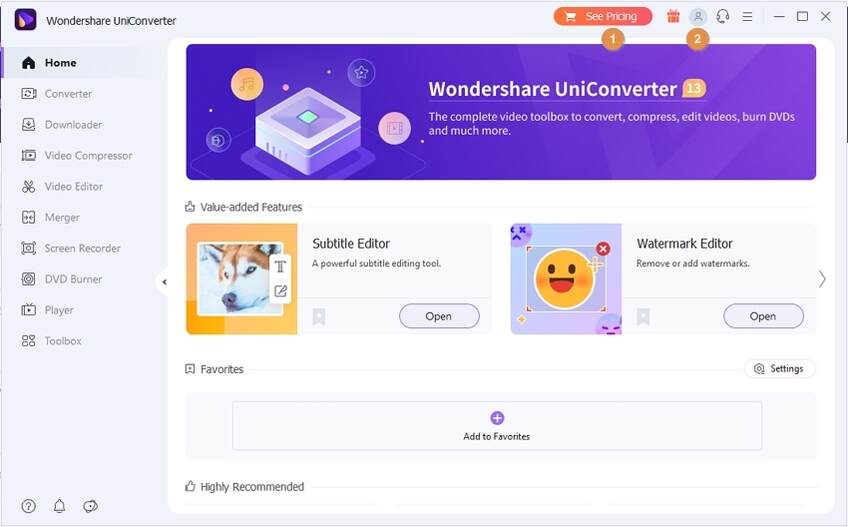
Once you get the Wondershare ID and Password of using UniConverter or if you have already purchased it, you can activate the program for full use by selecting the icon with the following detailed steps.
- Step 1: Double click on Wondershare UniConverter program icon to launch it, and click on the button on the top right corner, you will get the following window.
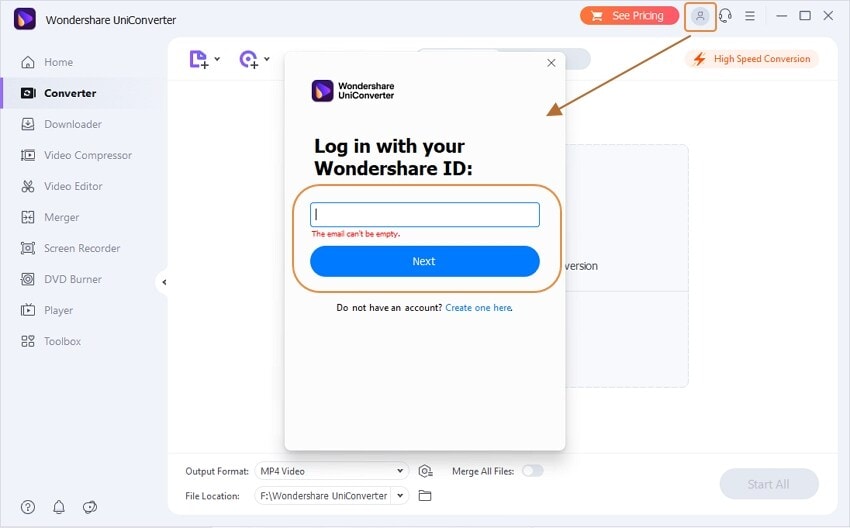
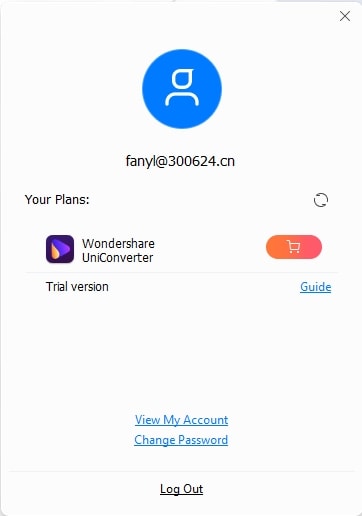
- Step 2: On the Log In your Wondershare ID part, enter your Wondershare ID with Password or Licensed Email with Registration Code, then click on the Log In/Register button to login in to. A pop-up window with account status will appear.
Tips: Click here to view more info about Wondershare ID.
2
Update
The UniConverter keeps updating with its software regularly to improve the functions and remove the bugs if any. For checking the latest available software version and also to update it, follow the steps below.
Step 1: Go to the Menu icon on the top right corner of the program > Preferences > General.
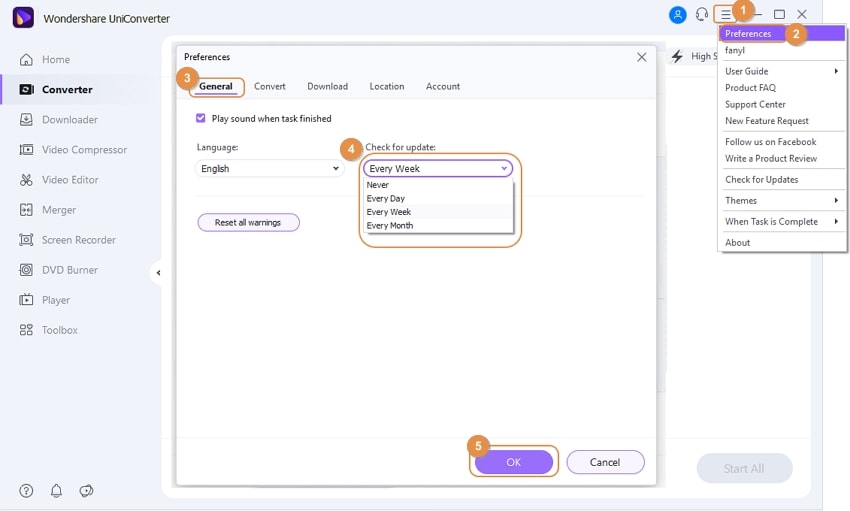
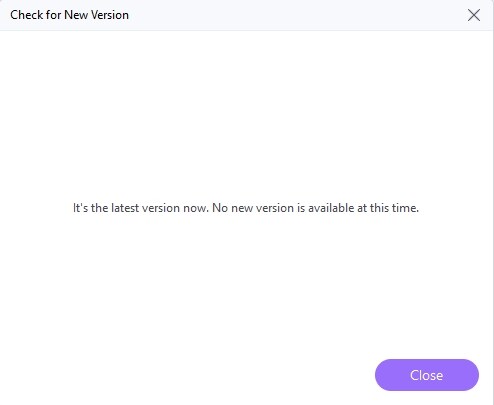
Step 2: A new pop-up window will open, under Check for update option, you can change Check for updates automatically to Every Day/Week/Month/Never accordingly. If there is a new version available, a pop-up window will appear along with details of the new version. Click on the Update Now button to download the latest version. If the latest version is already installed, you will get a message that You’re up to date!
Note: If you are running UniConverter, you will receive the following notice. Click on the OK button to close your running UniConverter to continue.
Part 3. Basics
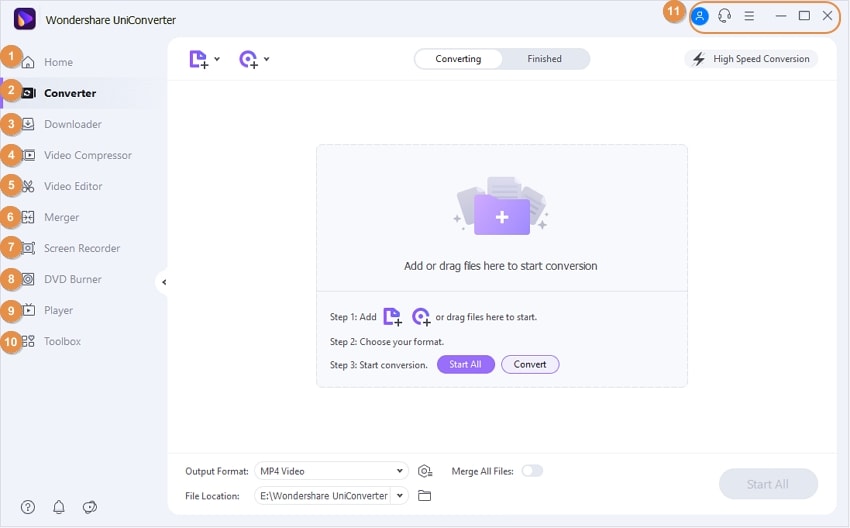
To perform various functions, the main interface of UniConverter comes with 5 main modules which are – Video Converter, Audio Converter, Downloader, Video Compressor, Video Editor, Merger, Screen Recorder, DVD Burner, and Toolbox. Details about these modules are listed below.
1
Home
For the Home section, you can find the Value-added Features and Highly-Recommended Features in UniConverter 13. you can launch any features list here by clicking the Open button under the specific feature.
2
Video Converter
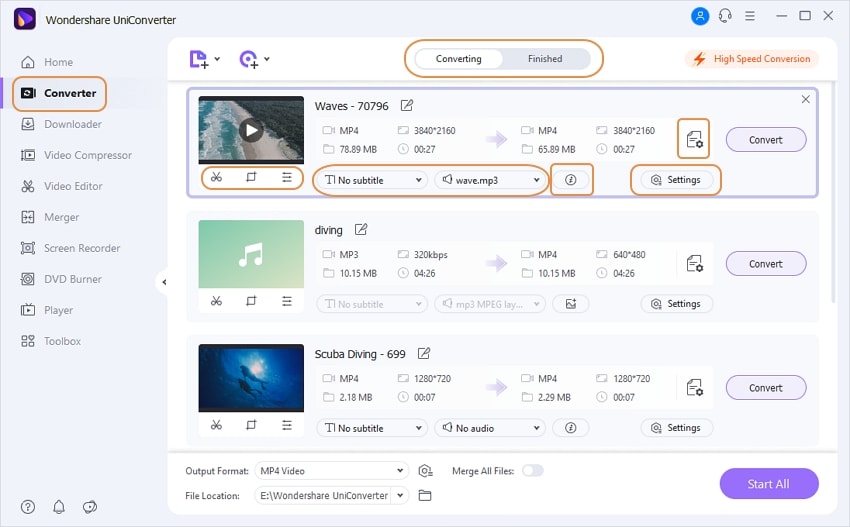
This module of the software allows converting your multimedia files from one format to the other. More than 150 formats for conversion are supported by the software. The Convert section further comes with a Converting and the Converted tab where the former is used as a file processing window while the latter stores all the processed and converted files.
3
Downloader
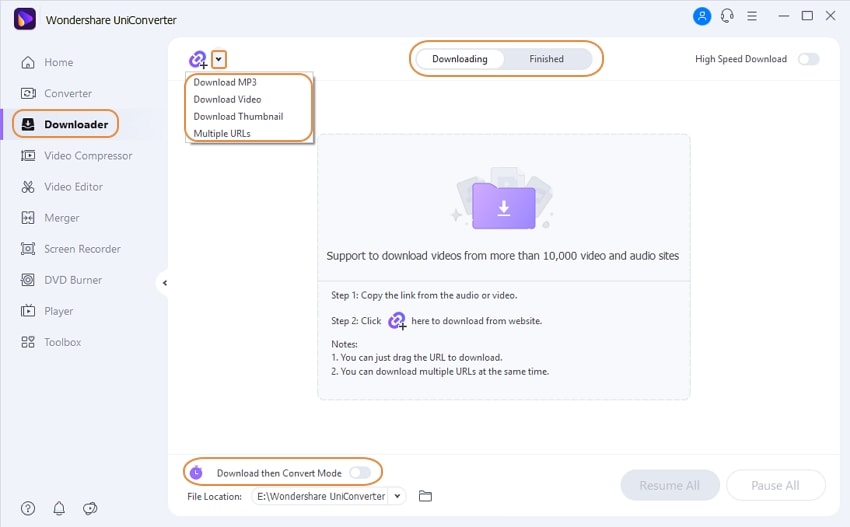
The module of Downloaderfacilitates video download from more than 10,000 sites including some of the major ones like YouTube, Hulu, Facebook, Metacafe, Vevo, and others. The process of video download is simple and quick and the program also allows extracting the music from the video files for playback on iPhone, iPad, iPod, and others. The section has a Downloading tab where the added files and their progress are shown while the Finished tab shows the downloaded videos and audio files. In addition to video download, the section can also be used for recording the streaming videos and desktop activities using the Record Video button.
4
Video Compressor
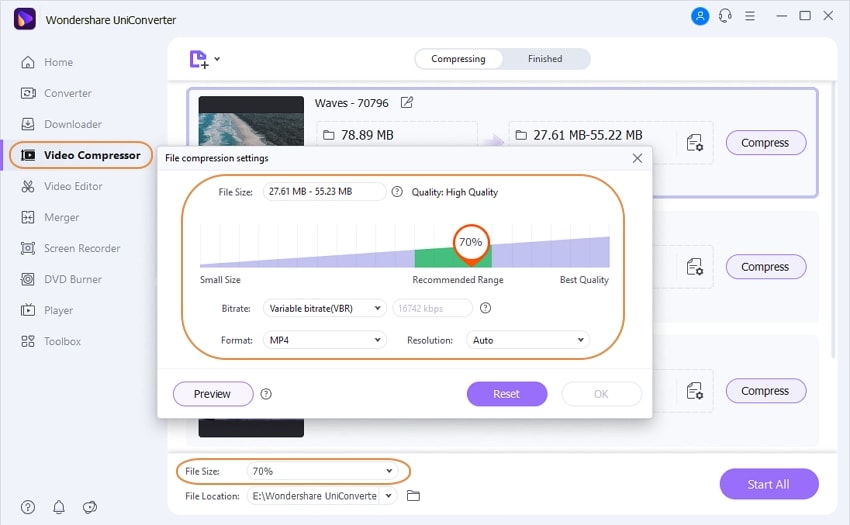
One of the most frequently used function in Uniconverter is Video compressor, it allows you to compress the files in just two steps, and in the settings you can not only choose the quality or size of the video, and also there are video and audio settings like video resolution, frame rates, and birate for you to do customization before the output.
5
Video Editor
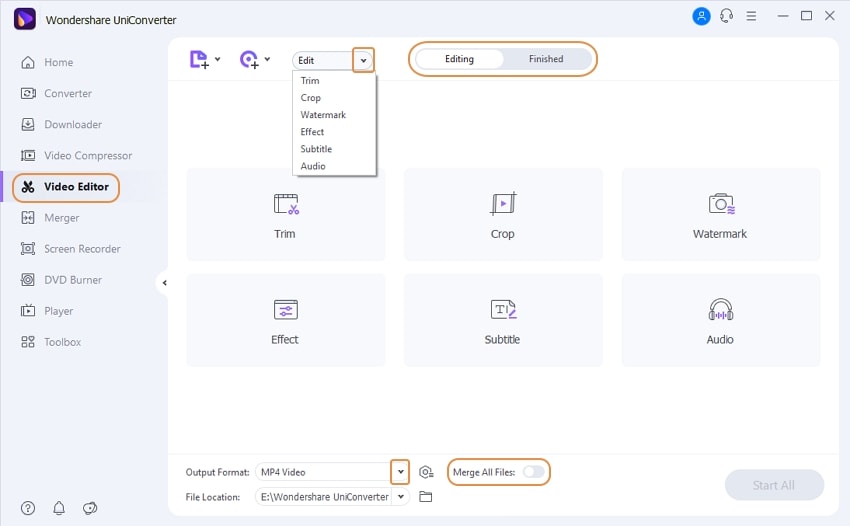
The section of video converter can be used for file customization. Supported editing features include trimming, cutting, cropping, adding watermark, adding subtitles, and others.
6
Merger
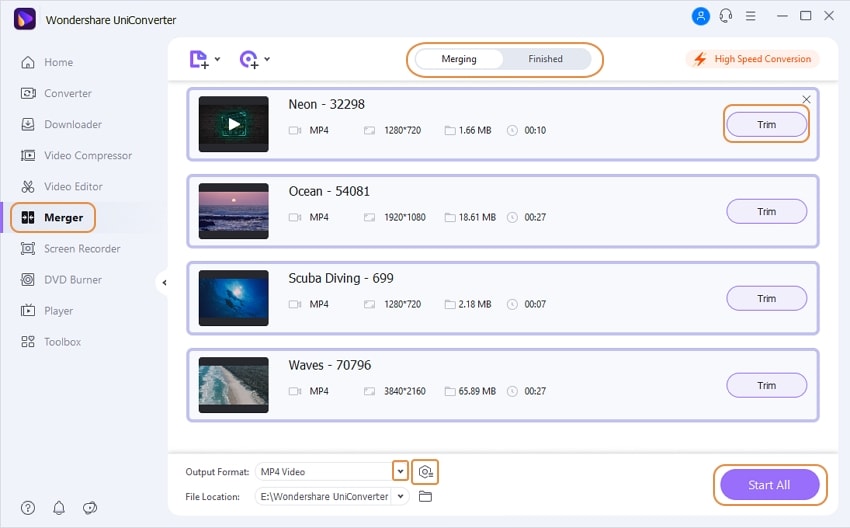
Uniconverter can help you merge multiple files into one fast and simply, which supports importing files from your PC, device, camcorder, or DVD. You also can convert it to different format you select with just one click.
7
Screen Recorder
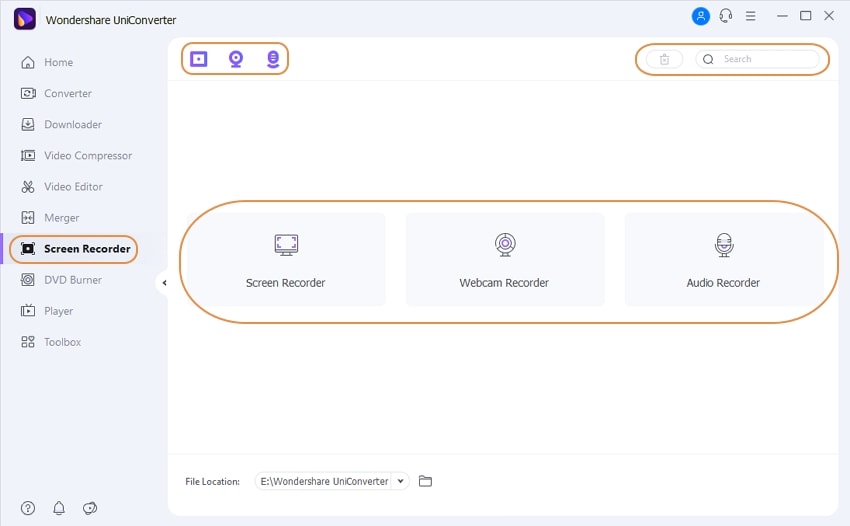
UniConverter has built-in functionality that can record screen, webcam, or audio. he recordings will automatically stored in the software and you can directly convert them to the many popular formats.
8
DVD Burner
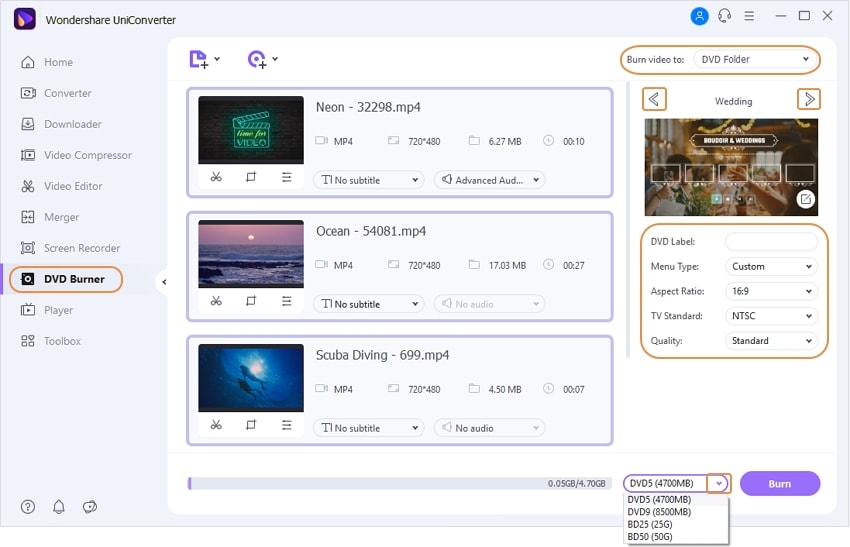
To burn your videos to DVD, this section of the software can be used. Files to be burned can be added from the local system, a device, or directly from a camcorder. The Load DVD button on the tab allows adding files from the DVD folder or ISO files.
9
Toolbox
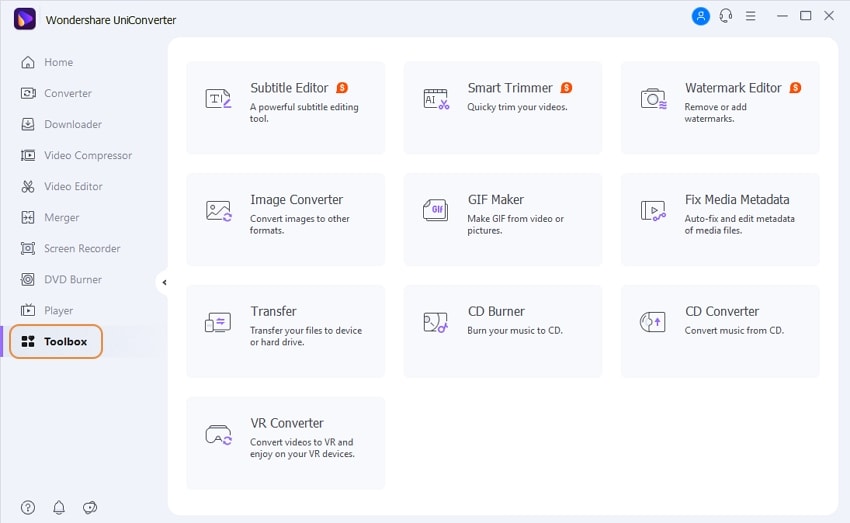
To perform several other additional features, the Toolbox of the software can be used. The features Image Converter, GIF Maker, Fix Media Metadata, Transfer, CD Burner, CD Ripper, VR Converter are enlisted.
User Guide
-
Get started
-
Video Converter
-
Video Editor
-
Video Compressor
-
Screen Recorder
-
Video & Audio Downloader
-
DVD Burner
-
Merger
-
Audio Converter
-
Toolbox of Uniconverter