
• Filed to: Mac Tutorials
PDF has become popular that you might work with PDF on Mac, Windows PC, and even iPhone, iPad or other platform. There might be times you need to annotate PDF to share your work process with others. You can try to add annotation to PDF with Preview, but it comes with limited annotation tools and with less function on PDF editing. If you want to control your PDF in more easy way, you need a great PDF tool. Here we will show you the easiest way on how to annotate PDF text on Mac with the best PDF annotation tool - PDFelement Pro .
Part 1: How to Annotate PDF on Mac (macOS 10.15 Catalina)
Mac OS X offers a function that is built-in to the computers for all basic annotations but it does not offer everything needed for more than the basics, which is an inconvenience for some. However, PDFelement Pro for Mac (PDF annotator for Mac) offers all regular annotation tools to add annotations and edit PDF documents. It will mark and annotate any PDF easily. It includes Text Box, a free-hand drawing tool, sticky notes, multiple line-drawing tools, markup tools and so on. There is also a dropdown menu that includes all of the tools in the Tools menu. You can customize the tool bar to add your favorite annotating tools.
How to Annotate PDF on Mac using PDF Annotator Mac
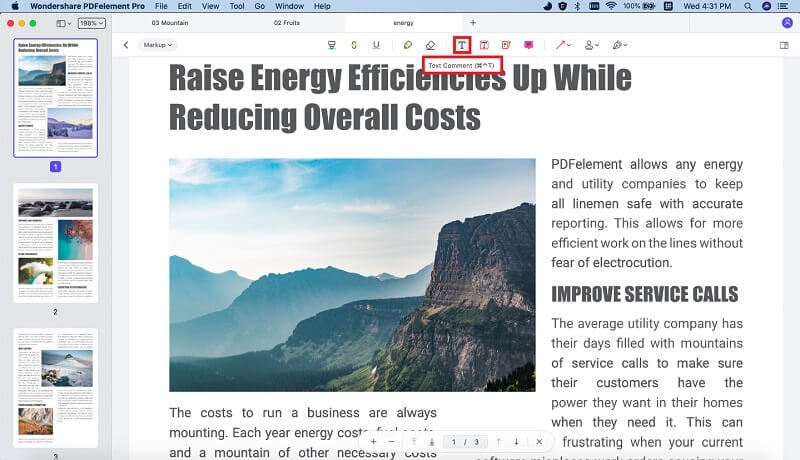
Step 1. Annotating Text Using Text Boxes and Sticky Notes
Simply click the "Comment" button and then select the Sticky Notes and Text Boxes that you want to use and drag it to anywhere on PDF file. You can then just type the information that you want to add. The color for both can be changed.
Step 2. Make Annotations Using Drawing Lines
It is possible to draw line and add imprints onto the pages. To do so, click the "comment" button and then seletc "shapes" option. Then you can select any drawing to add to anywhere on your PDF file.
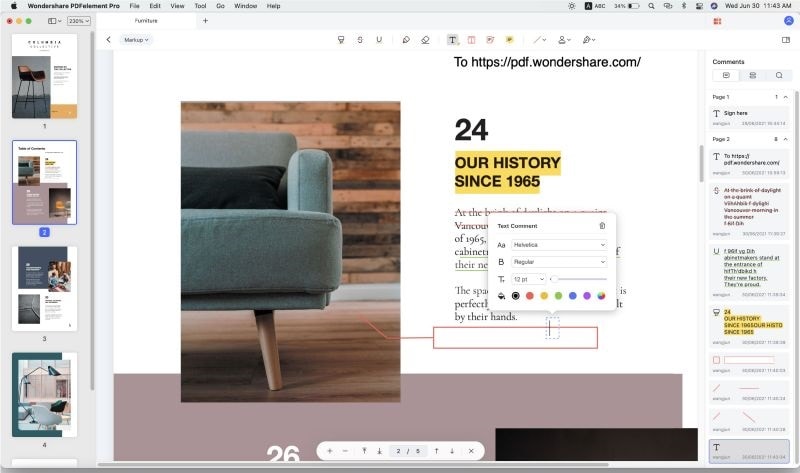
Step 3. Free-Hand Drawing and Adding Hyperlinks
The toolbar has a Pencil button, which is perfect for drawing on the PDF pages. If you make a mistake then the eraser tool can be used to change it. It is also possible to add links (URLs) in pages. You can open Edit panel and click on the "Link" button.
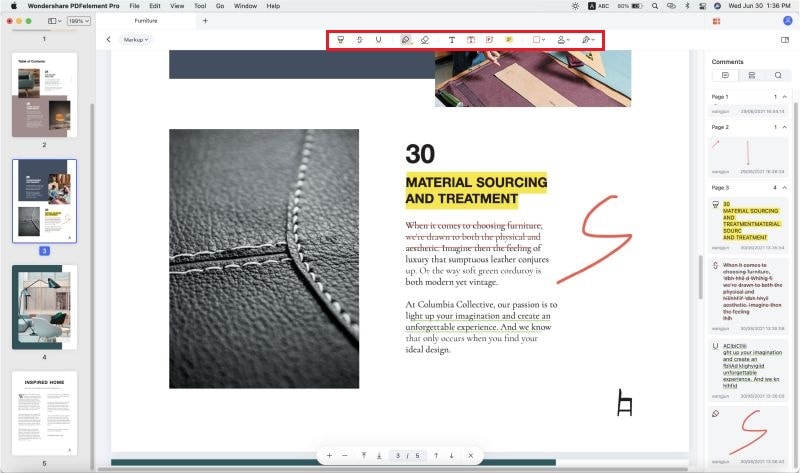
Step 4. Markup the Document
If you want to highlight specific text, the markup tool is perfect for this. You can change the color of the highlighter. This tool also allows you to cross out information or underline important sections. This is perfect for marking content.
Why choose PDFelement Pro for Mac to Annotate PDF
PDFelement Pro for Mac (10.15 Catalina included) provides you multiple PDF editing tools to edit PDF texts, images, links, pages and other elements with ease. Except for this, you can also convert PDF file to Word, PPT, Excel and other popular file formats easily.
Why Choose This PDF Markup Tool:
- Add watermark, signature and sings, feehandshapes and password to PDF with ease.
- Easily edit PDF texts, graphics, images, links, watermarks, etc.
- Convert PDF to Word, Excel, and more formats and batch convert multiple PDFs.
- Create PDF from other formats and create PDF forms easily.
- Combine multiple files into PDF and split PDF into several files.
Part 2. How to Annotate PDF on Windows
To annotate PDF on Windows, you can use PDFelement Pro for Windows. This Windows PDF annotator will provide a flexible platform for you to annotate PDF files as well as edit, encrypt, convert, markup and do more in fast and easy steps. You will find that the PDF annotation software is fairly easy to use as it will only take a few clicks for you to add or insert comments.
- Step 1. Launch this Windows PDF annotator and click "Open" to import PDF file.
- Step 2. Go to the "Comment" tab and select the annotation tools to annotate PDF.
- Step 3. Click "Save" to save your annotation.
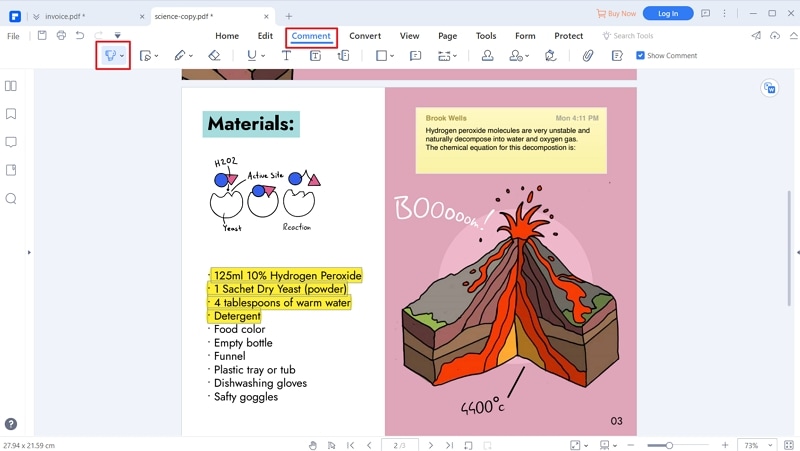
Apart from this, you can also annotate PDF on Windows with multiple markup tools. With the help of this PDF annotator for Windows, you can easily add sticky note, stamp, and free hand shapes. It also provides you access to hide annotations as your needs.
Part 3. Free PDF Annotator for Android, iPhone, iPad or iPod
PDF has become a widely used file format. You can read PDF in many platforms like Mac, Windows, or even your iPhone, Android devices, etc. Here we are going to focus on free PDF annotator tools for you to annotate PDF on Mac, iPhone, or Android devices. Although PDFelement for iOS need extract payment, it can provide smooth annotating experience.
1. PDF Annotator for Android
• iAnnotate PDF
iAnnotate PDF is a free PDF annotator for Android users to read and annotate PDF. iAnnotate PDF lets you annotate , search, manage and share PDF documents easily on any of your Android tablet. iAnnotate PDF could be the best PDF annotator app to annotate PDF, sign contracts, take notes on lecture slides and more.
How to Use iAnnotate PDF: After opening your PDF file with this PDF annotator Android tool, go to the annotate interface. Then you will see multiple annotation tools on the right side. Click on any tool to highlight, underline, and add texts to your PDF file.

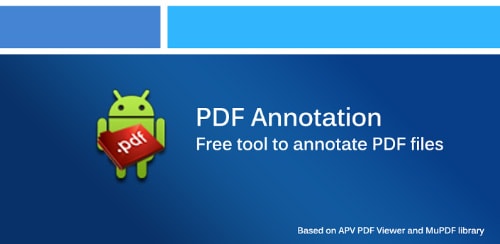
• PDF Annotation
PDF Annotation is another PDF annotator freeware. With a long press on any of your PDF texts, you are able to annotate the file easily. It provides actions like edit, delete, move or resize texts on a PDF file. What’s more, you can get annotation report to locate the annotation you have left on specified page.
How to Use PDF Annotation: When you have opened your PDF file with this free PDF annotator, long press anywhere on the PDF file to add the annotation. Go to annotation list, you are able to view the annotation report.
2. PDF Annotator for iPhone, iPad or iPod
• Adobe Reader
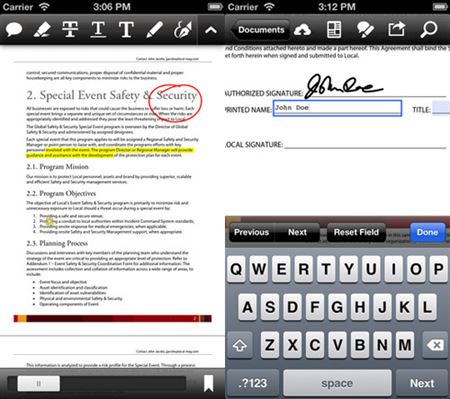
Adobe Reader mobile app for iPhone, iPad or iPod is available in iTunes Store, which is designed as a free PDF annotator for Apple mobile users to view or edit PDF directly on their iPhone, iPod or iPad. You can quickly open PDF files on your iDevice from Email or webpage and read the PDF with built-in PDF viewing tools. And it provides many useful annotation tools and drawing markup tools.
How to Use Adobe Reader: After you get this PDF annotator free download on your iPhone or iPad, open a PDF file. Then you can highlight, underline or strikethrough any texts. Or you can add freehand drawing and comments to any position of the PDF.
• PDF Review Free
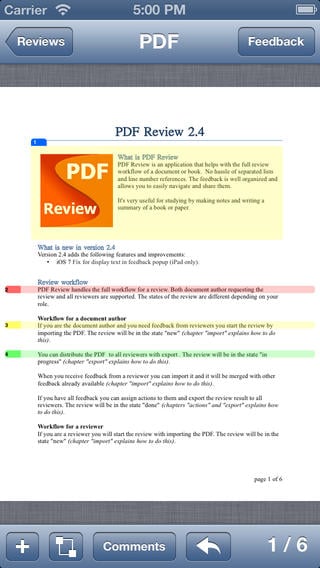
PDF Review Free is a free PDF annotation software for iPhone (iPhone 5), iPod and iPod touch. The easy-to-use interface allows you to quickly ass feedback to PDF files. The feedback has different types like issues, questions and notes. And it allows you to easily navigate to the feedback you have left on any position of your PDF file. It will send you a structured review report including the annotated and feedback pages.
How to Use PDF Review Free: Import a PDF file to PDF Review Free and open the file with this application. Then find the page you want to annotate or left feedback. Tap on a sentence or a paragraph to select the texts and you will get a pop-up window to work with feedback.
Part 4. Annotate PDF on Mac with Preview Not Working Fixed!
Mac PDF previewer also works as PDF annotator for the user. Though the app only does basic PDF annotation but still it is very handy. At times there are certain issues which are faced when it comes to Mac default PDF viewer. Some common issues and their solutions are as follows.
Problem #1. The Mac PDF previewer crashes while annotation in progress
Solution: It is a problem for which this app is notorious. The earlier versions of Mac such as Yosemite faced these issues frequently. The solution is simple. The user needs to update the version of Mac OS and refresh the cache. The font folder at Library/Caches/ATS folder is to be deleted. It will fix the issue completely.
Problem #2. PDF distortion once the annotated file is saved
Solution: It is another issue which is faced by the user when PDF file is annotated. Once saved the file becomes distorted. Mac OSX do not support ISO standard PDF files and users get the issues. Apple in this regard asks its users to contact the customer support. The online info in this regard is not reliable and it should not be tried at all.
Problem #3. Inline text editing related issues
Solution: Mac preview is very disappointing when it comes to inline text editing. It happens when a single word in the PDF file is changed without any other change. This issue has no fix at all. The only way out is using PDFelement Pro for Mac. The inline text can be edited with this program in a safe manner.
Problem #4. Text selection not possible using Mac preview
Solution: To ensure that the issue is resolved the OCR application should be downloaded for Ma previewer. The built in OCR is the cause of issue and should be disabled to get the work done easily.
Problem #5. Preview will not merge or manipulate PDF files
Solution:
- Open both files that need manipulation.
- Select command P for printing them.
- In the print preview select "Open in PDF preview".
- The PDF files can be merged, annotated and manipulated as required.
Ivan Cook
chief Editor