How to Add Subtitles to MP4 Videos on Mac and Windows
Adding subtitles to your clips can have a significant impact on the success of the video creator. For social media videos, movies, TV shows, educational content, and any other kind of video, you will get benefits if you add subtitles to MP4. A recent survey data revealed that more than 28 million American adults face hearing difficulties. So, as you want to include millions of people watching your video, you will also have to consider those deaf or hard of hearing. Also, viewers of almost 85% of social media videos watch it on mute. So, if your clip is not subtitled, those people will miss out on your video. There are some listening learners along with visual learners. They won't get as much out of your video without subtitles. And so subtitles improve comprehension. Everyone won't understand your language. In that case, it is vital to offer subtitles in multiple languages and add a caption to MP4. It is to note that videos with no subtitles get watched only around 66% to completion compared to 91% with subtitles. Videos with subtitles increase video social reach and improve SEO.
Now, let's talk about how you can add subtitles to your MP4 with efficient methods.
Part 1. Three Easy Ways to Add Subtitle to MP4
Let's check out how you can add subtitles to MP4 in three easy ways.
Method 1: Use Desktop Video Toolbox - UniConverter
Wondershare UniConverter is a multi-purpose platform to complete all kinds of tasks regarding video and audio. You can convert a video, edit, and add subtitles with UniConverter. Besides, add an SRT file to a video, burn CDs into DVDs, download videos from the Internet, transfer them to your phone, etc.
Wondershare Uniconverter has so many features including:
- It assists more than 1000 video and audio formats.
- Trim your videos quickly.
- Allow batch convert concurrent tasks without any limitation on the quantity.
- Offer a powerful subtitle editing tool.
- Remove or add watermarks and make GIFs from videos or pictures.
- Edit and auto-fix metadata of files.
- Convert videos to VR and music from CD.
- Convert videos between 150+ video and audio formats at 90X faster speed, such as MP4, MOV, WMV, MKV, AVI, FLV, VOB, etc.
- Add subtitles (.srt, .ass and .ssa) or watermarks and special effects or other features to your videos before converting them.
- Convert videos from 1,000+ popular online video websites like YouTube, Vimeo, Vevo, Hulu, etc.
- Transfer your converted video to your mobile devices like iPhone, iPad, iPod or Android Phones and tablets to watch on the go.
- Provide with a set of handy tools to make GIF, convert VR, cast video to TV, record screen, etc.
- Easily burn videos to DVD, copy DVD files as a backup.
- Perfectly compatible with all macOS and Windows OS, including macOS 10.7 Lion to 10.15 Catalina, and Windows 10.
Now, let’s know how you can add subtitles to MP4 videos with UniConverter.
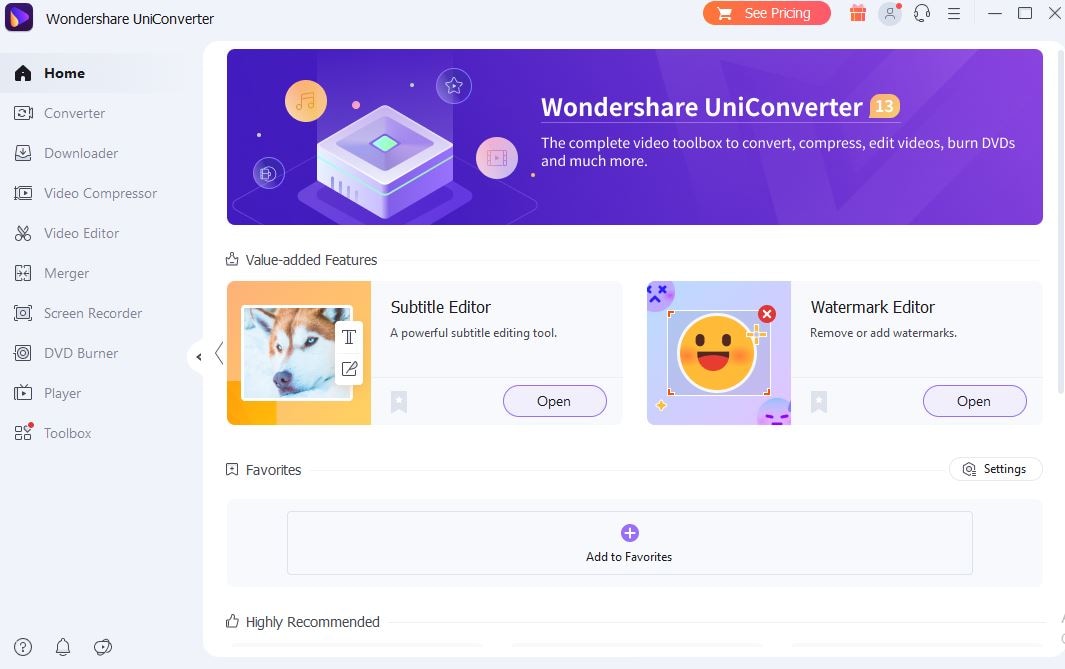
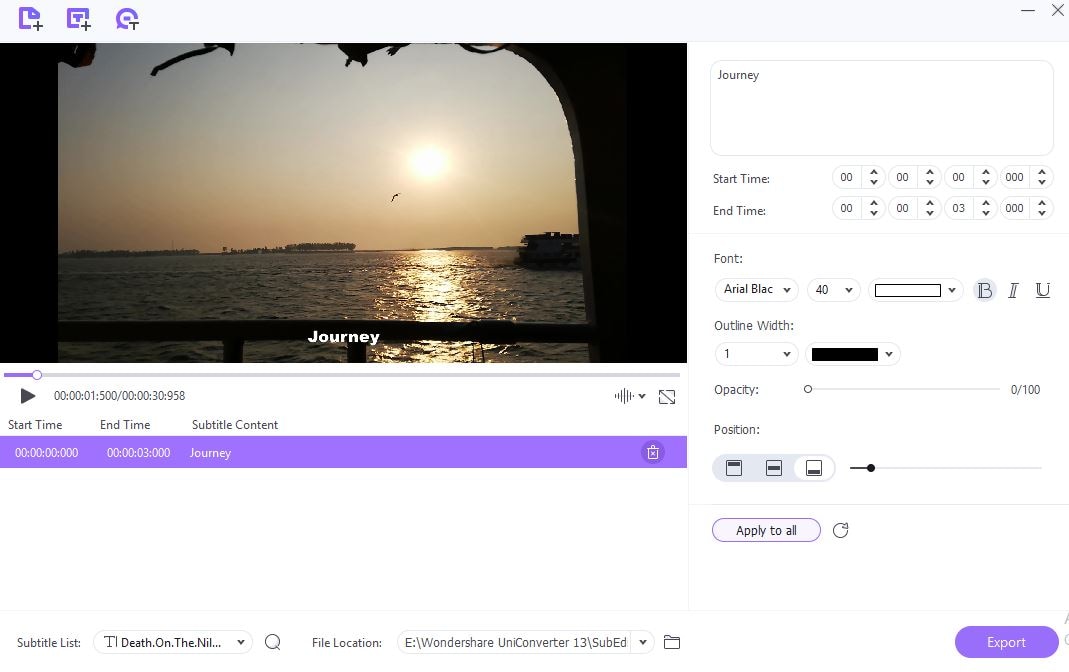
Step 1: Select Subtitle Editor
After downloading the desktop version, run UniConverter on your computer. Select “Subtitle Editor” mode.
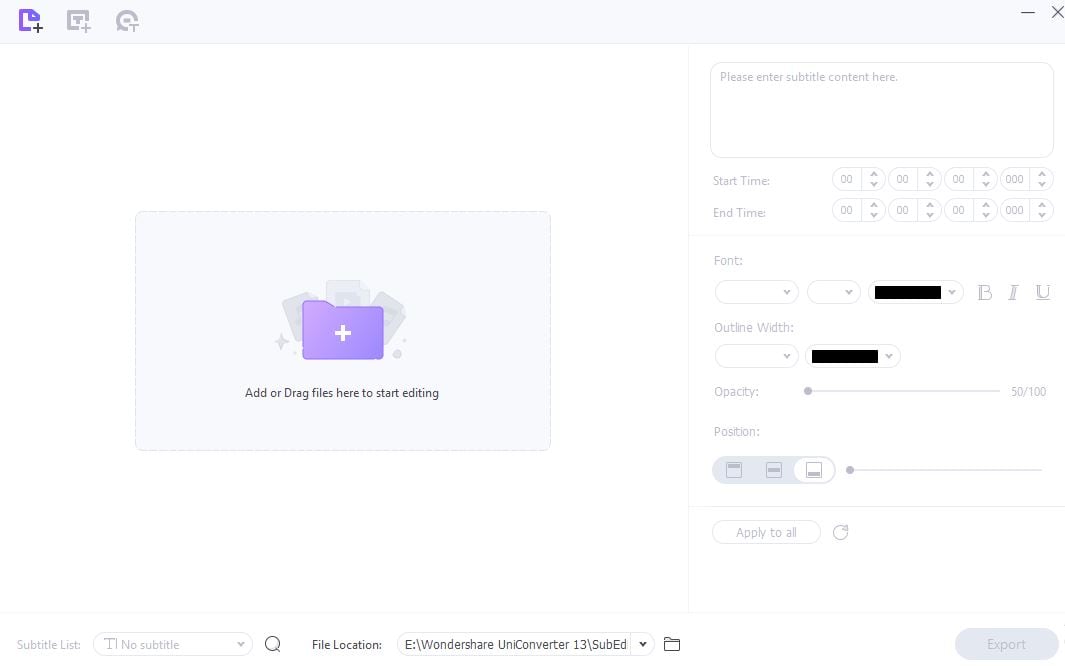
Step 2: Insert the file
Add a file or a folder by clicking the icon left corner of the interface or click the (+) icon and insert the file.
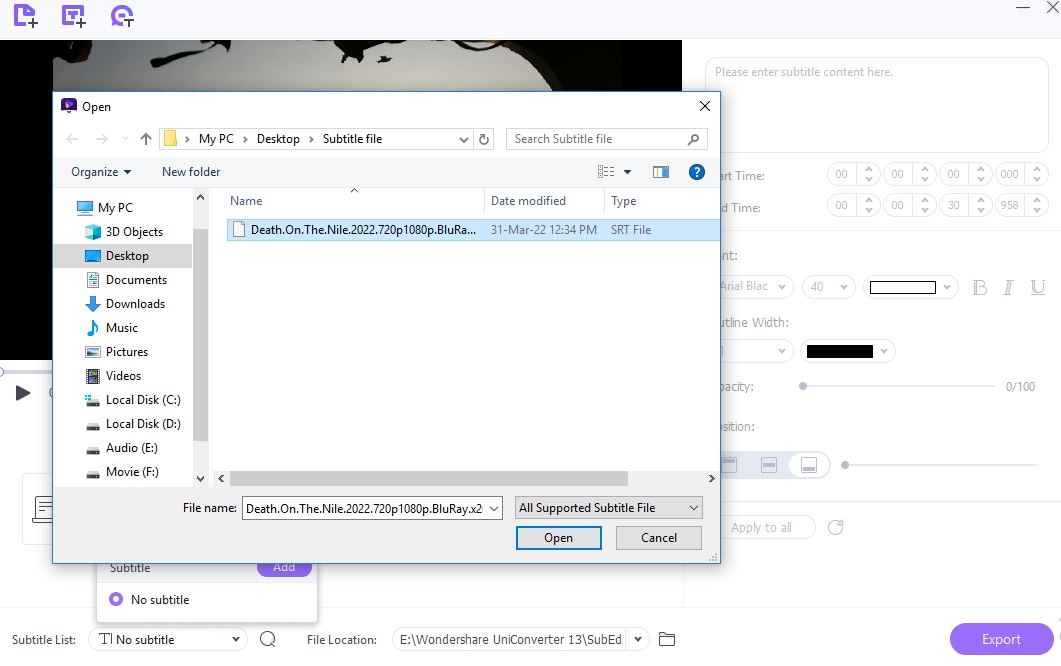
Step 3: Insert the .srt file
Check the “Subtitle List” below the left corner, click on the box, and add the subtitle .srt file. Select and click “Open.”
Step 4: Choose a mode
Tap on the “New” button to customize the setting.
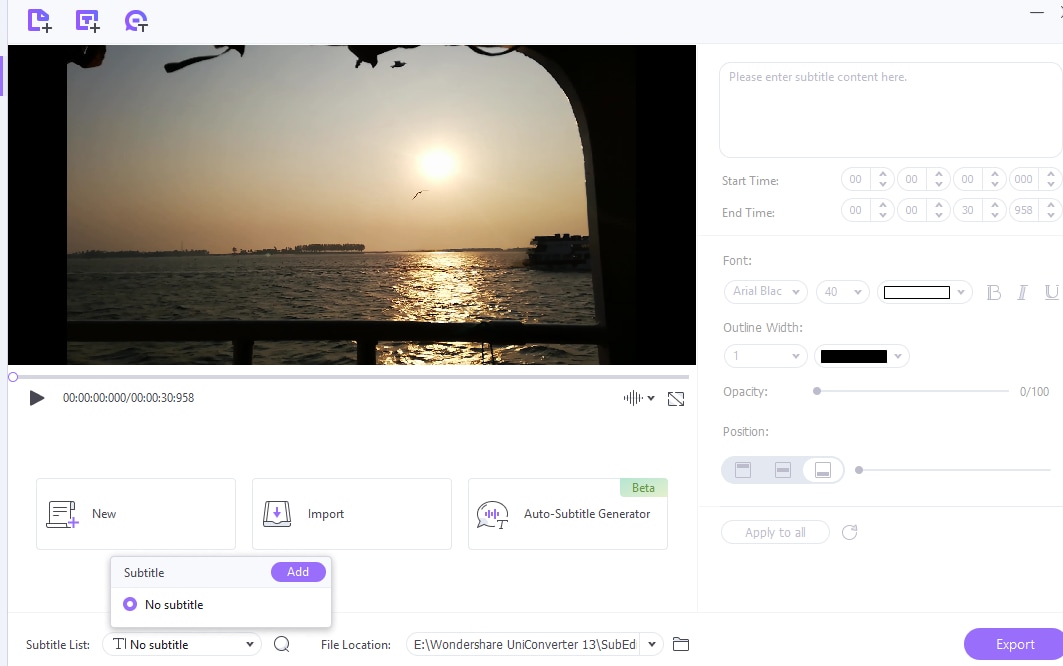
Step 5: Customize the setting
Customize the given options as per your requirement. Once done, you need to click on the “Apply to all.” Hit the “Export” option and save the file.
Method 2: Use Video Player - VLC
If you want to add or embed subtitles to MP4 with VLC, keep in hand the video you wish to add subtitles to and the .ar.ass/ .ar.srt file of subtitle to add.
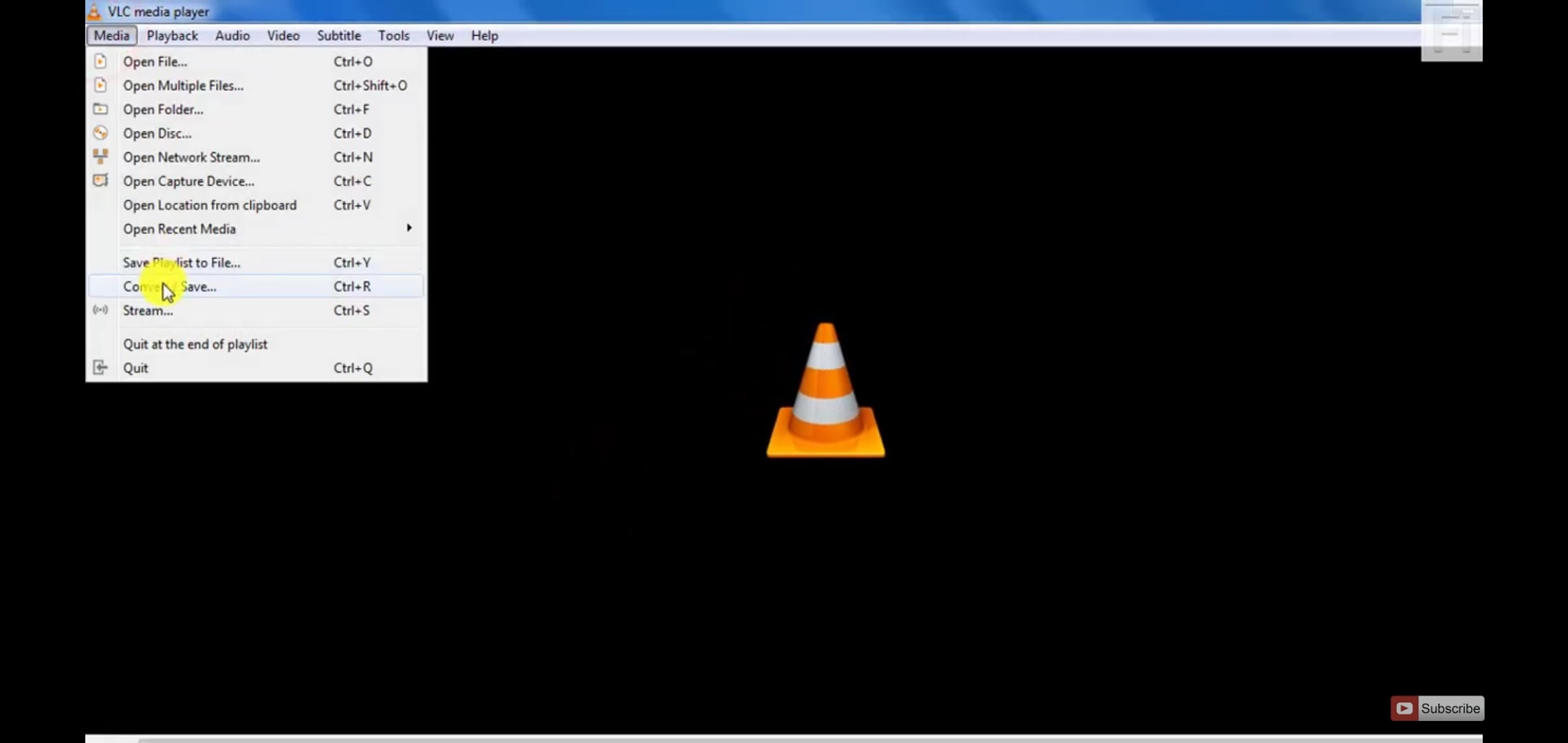
Step 1: Open VLC and choose an option
Go to the VLC player and click on the “Media” at the left corner of the player. From the given options, choose “Convert/ Save.”
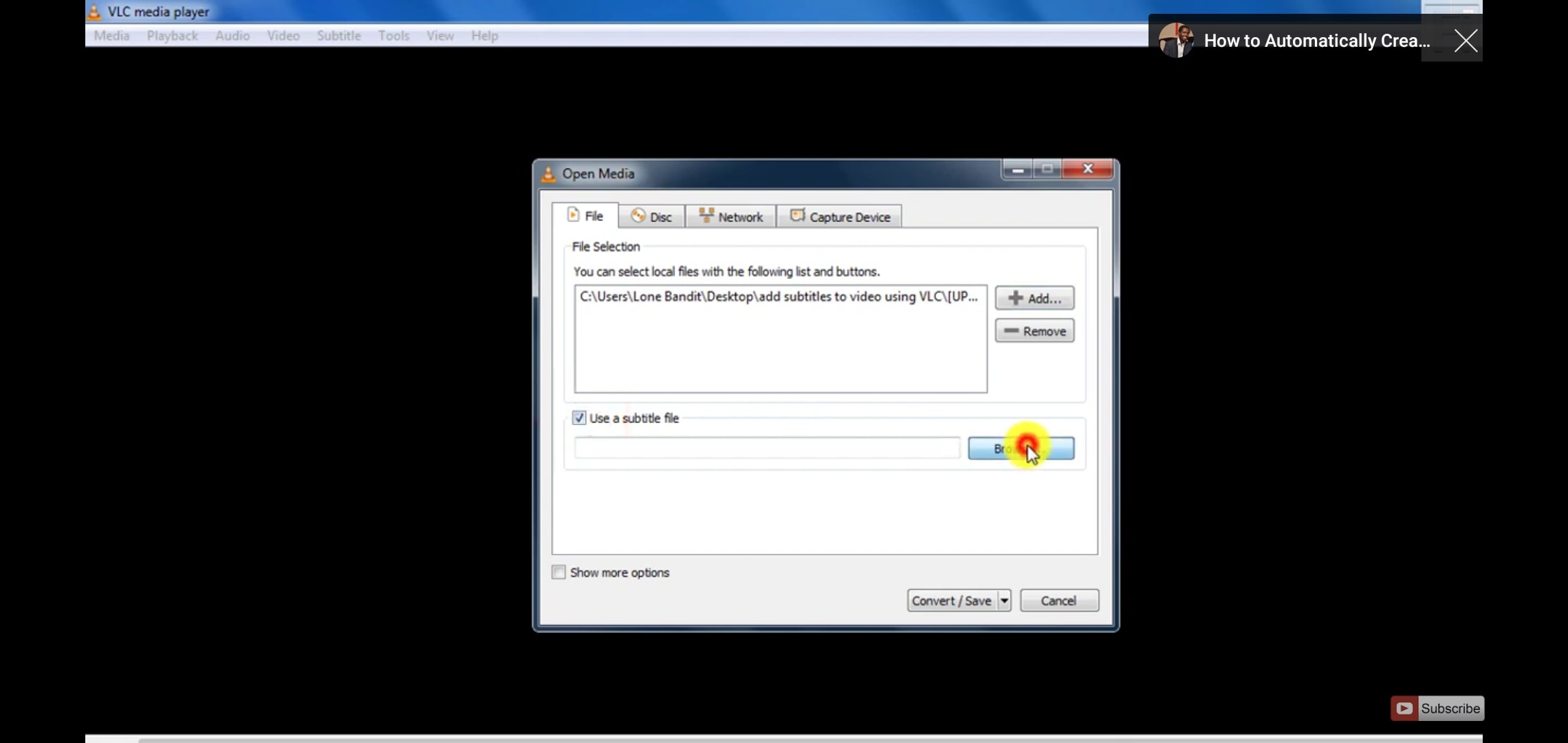
Step 2: Browse the video and subtitle file
Now tap “Add file” and add the video by selecting. Tick “Use a subtitle file” and choose “Browse.” Choose the subtitle file.
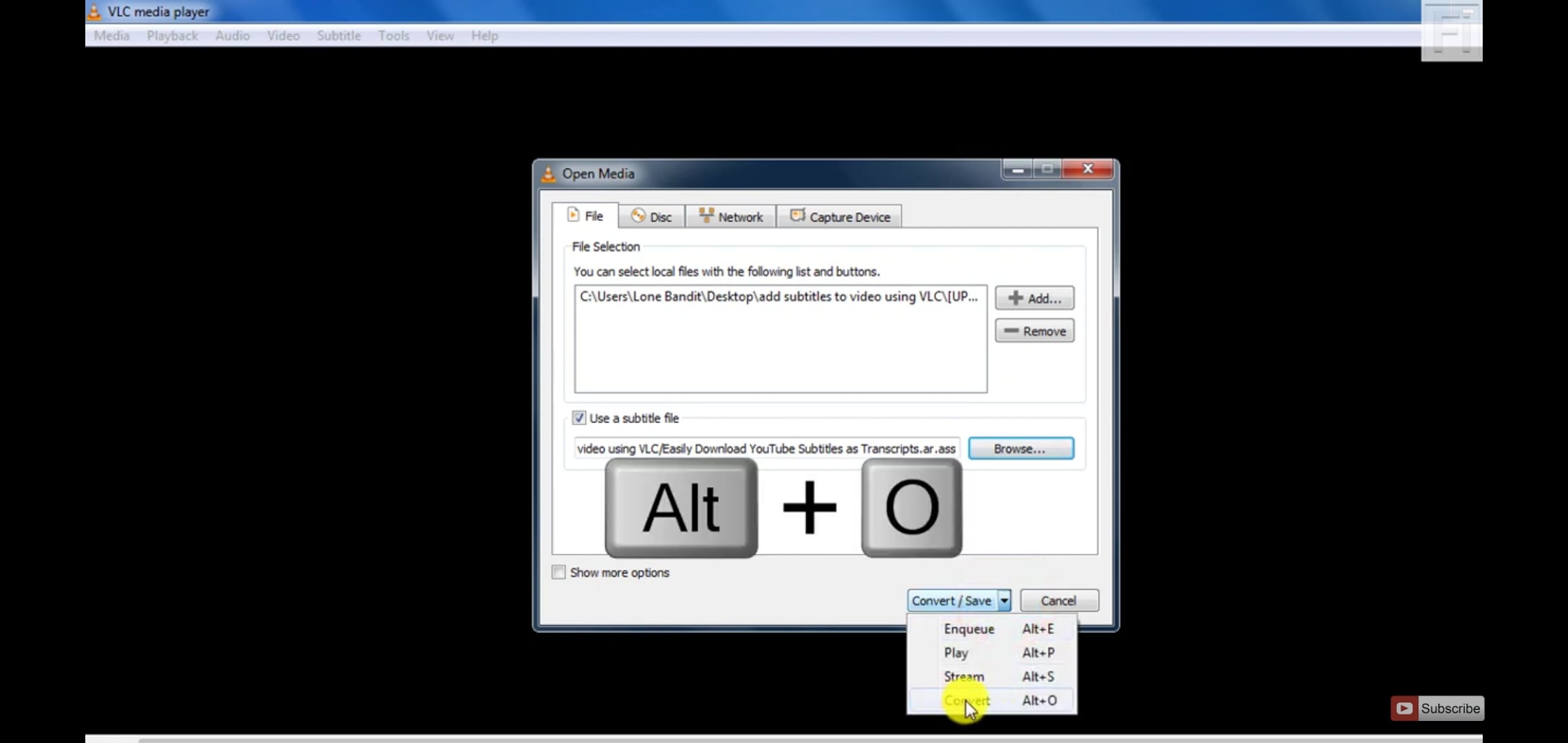
Step 3: Choose the convert option
Select the drop-down and choose “Convert” or select “Alt+O.”
Step 4: Set the subtitle option
Confirm the settings are ok. Set the profile as you need. On the Profile option, select the setting icon, go to the "Subtitle" option, and ensure that both options are ticked. Click on "Save."
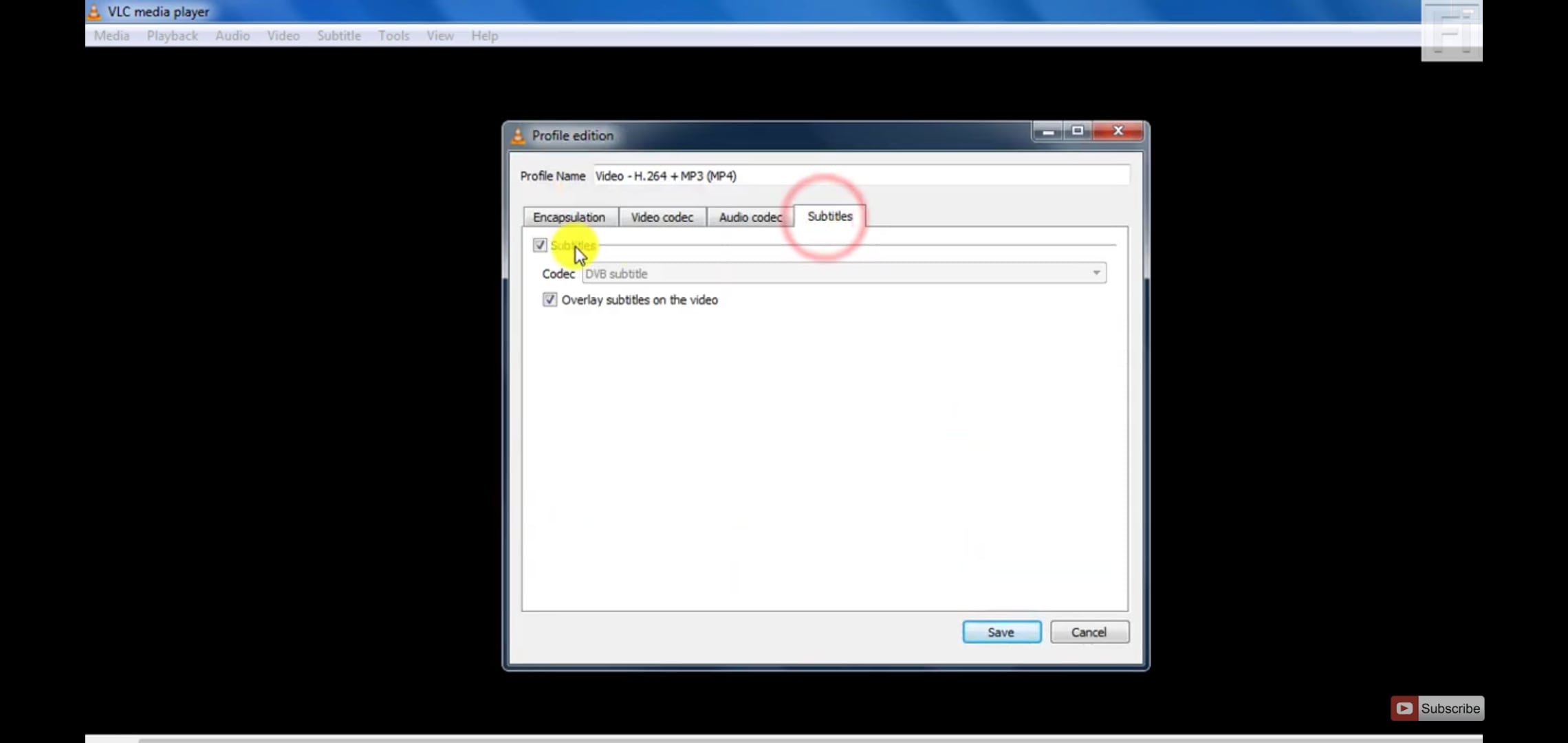
Step 5: Start adding subtitle process
Click on the "Browse" button, rename the file, and click on "Start." The screen will disappear, and a new video will get saved in the folder. Play the videos, and it will play with subtitles.
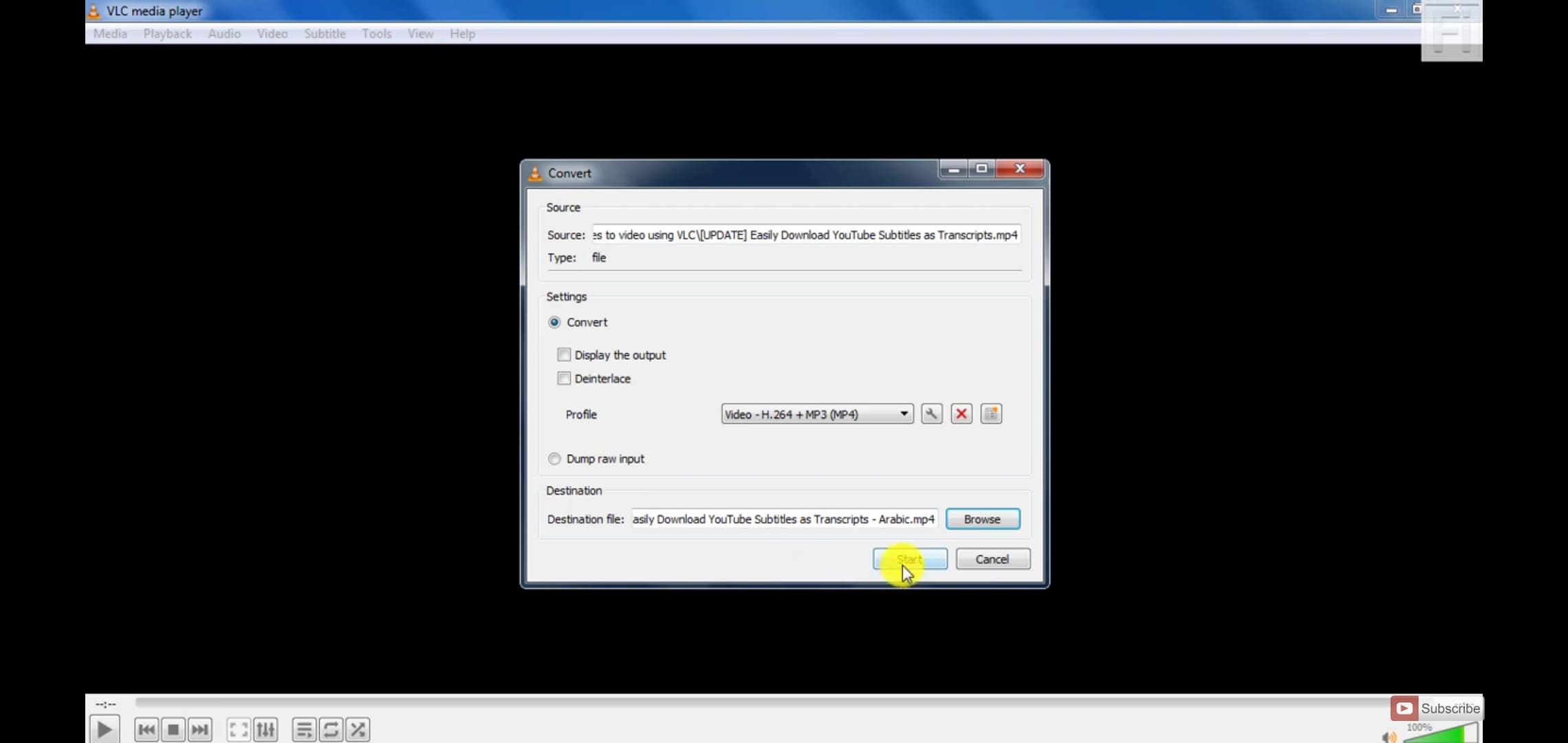
Method 3: Use Online Video Tool - Clideo
Using an online video tool, you are also allowed to complete MP4 SRT conversion. Clideo online platform will help you burn your subtitles onto a video for free. Follow the mentioned steps below.
Step 1: Upload your clip to Clideo
Go to the official site of Clideo and click on the ‘Choose file’ button. You can also upload a video directly from Dropbox or Google Drive from the drop-down menu.
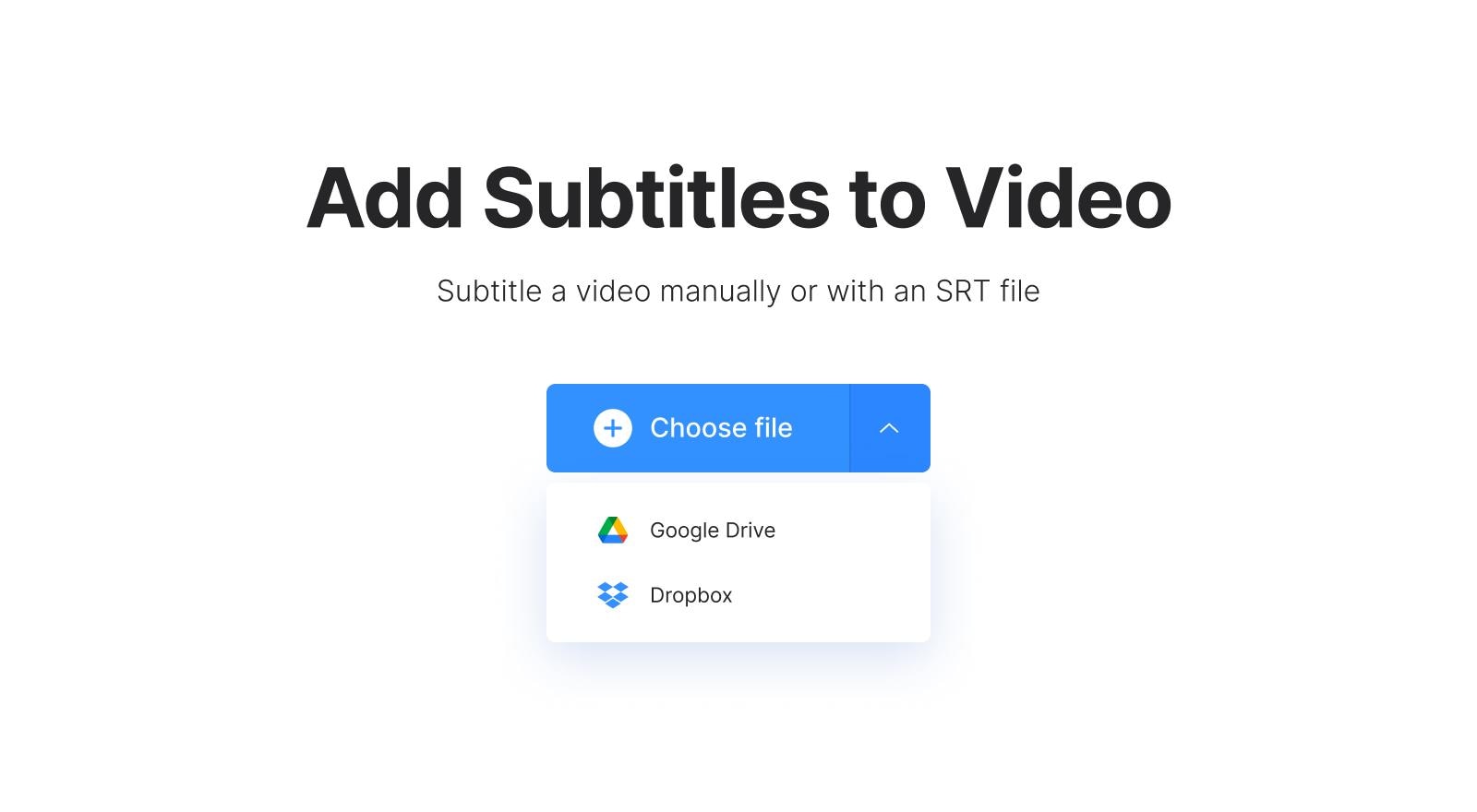
Step 2: Burn in subtitles
Now you can input your subtitles as captions with a .srt file. If you have subtitles, the letter is for such a case. You can input them manually if you do not have the subtitles.
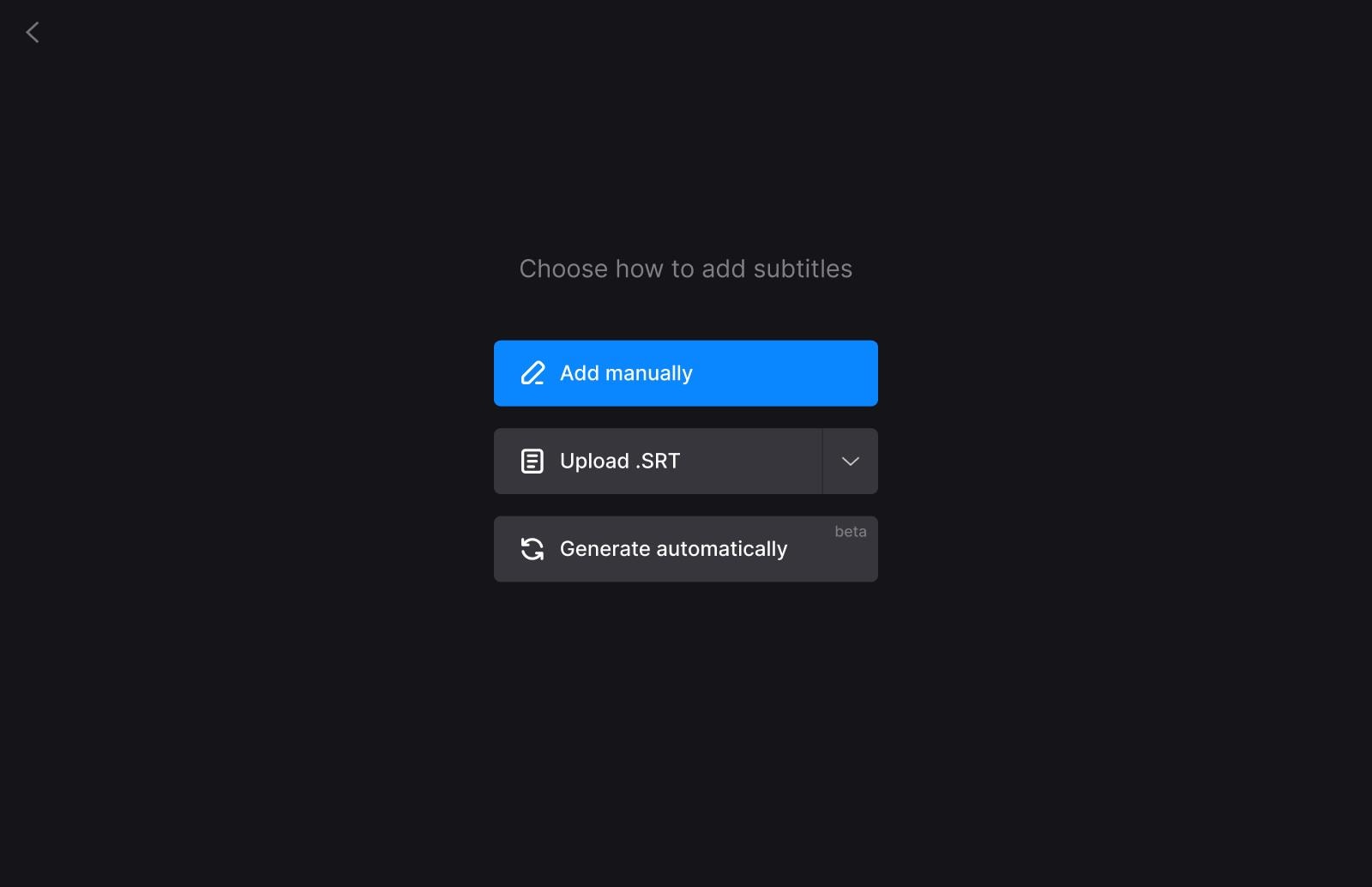
Step 3: Customize the setting
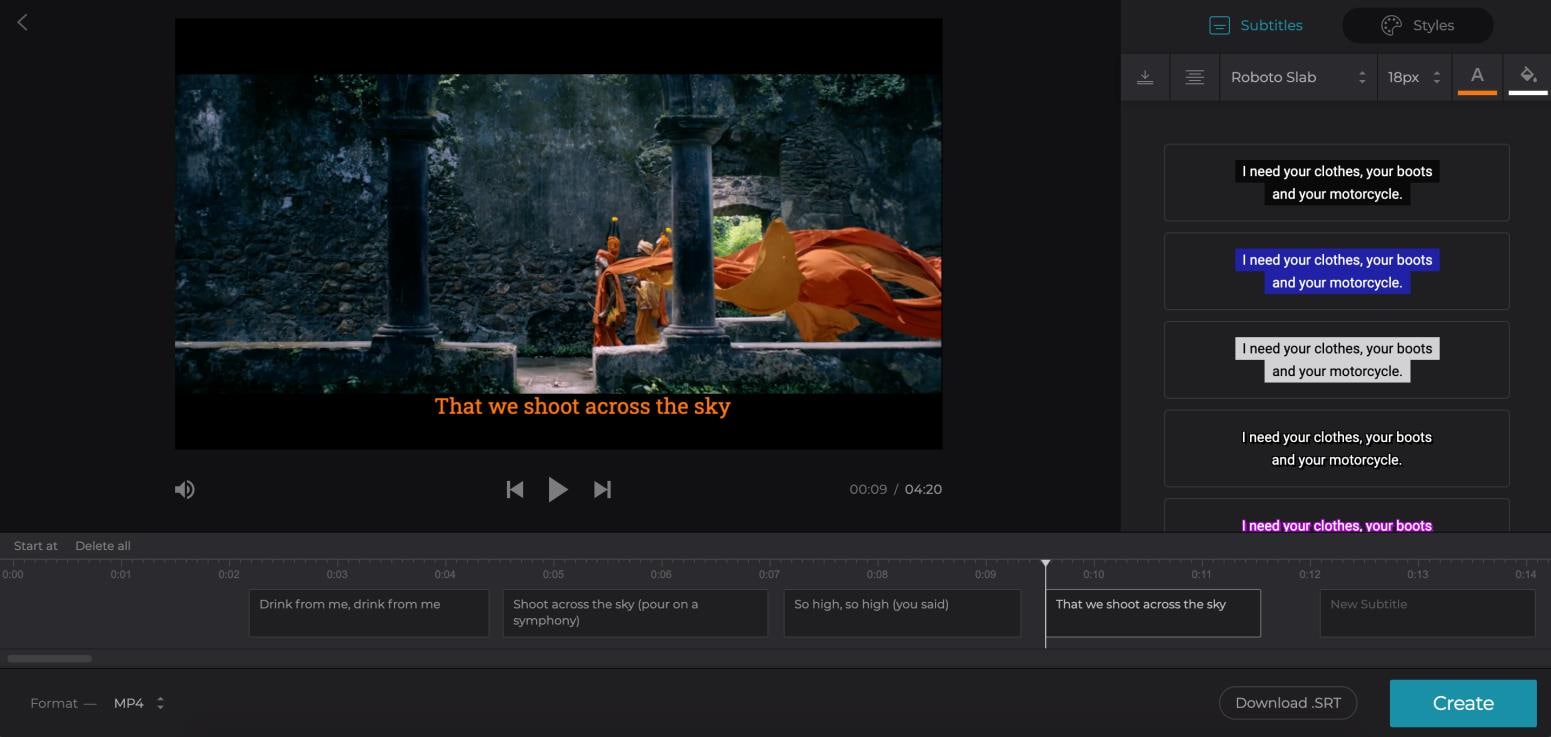
From the editor options, add your captions and the timing. You can customize the font, color, background, size, and alignment from the "Styles" tab and click the 'Download. SRT' button once done. On the bottom left option, you can choose the video format. Tap the "Create" icon to burn the subtitles into your video.
Step 4: Download the final subtitled clip
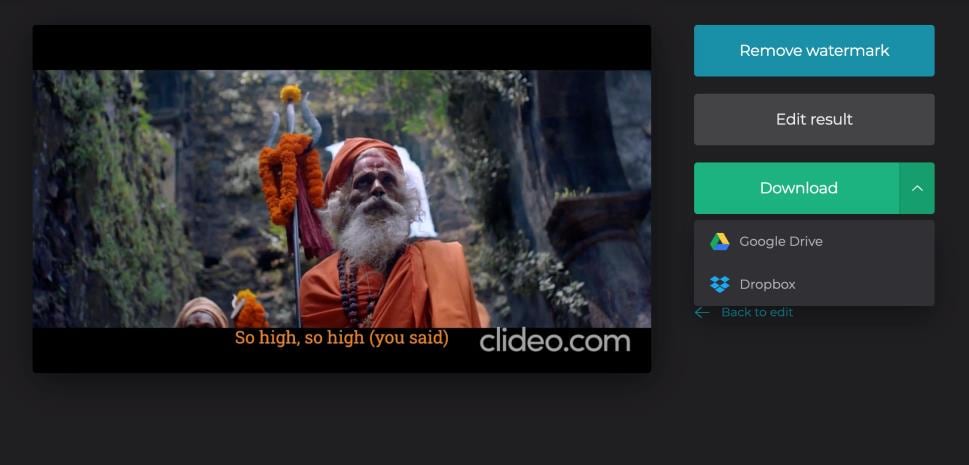
Now, preview your clip and save it to your device by clicking “Download.”
Part 3. Subtitle's format: SRT, what is an SRT file, and how to edit it (use Notpad++)
SRT or SubRip Text file type is helpful to add or merge SRT with MP4. Subtitles are formed as regular text files. Thus, to make them readable easily by video player programs, it is the better option to save them with the extension SRT rather than in the form of TXT.
First, you need to create a new file with a text editor. You can write something or leave the file blank.
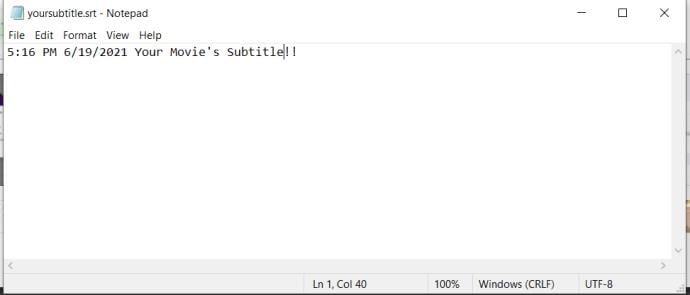
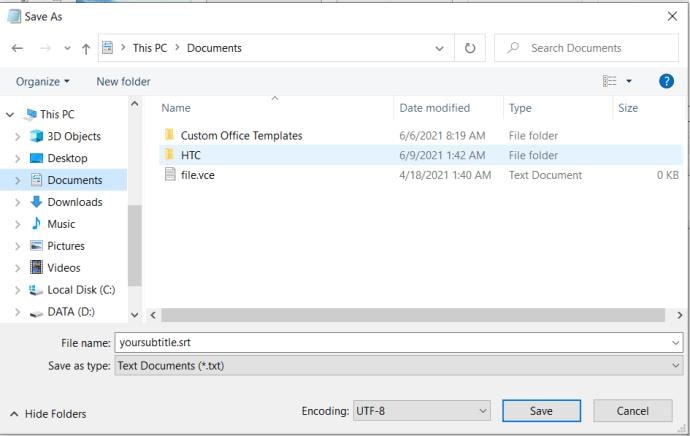
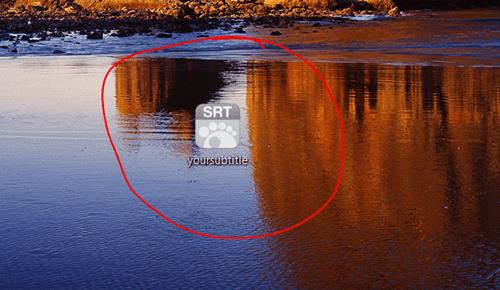
Save the file in the format of a .srt extension (your subtitle.srt. file name).
The icon will change and turn into your default video player’s icon.
Using Notepad++ to embed SRT into MP4 is an excellent way by editing the SRT file. As Notepad comes pre-installed on every PC, it needs not to download. Follow the steps to complete the adding SRT file.
Step 1: Open the SRT file
Open the SRT file that you want to edit. Because of the file’s SRT extension, the system won’t be able to open it even after trying to double-click on the SRT file. At this point, you need to select a program manually.
Step 2: Make changes on file and save
Right-click on the file and Notepad++ will show up on the first menu. The page will show the SRT file consisting of time-stamps and the text. Now make the change and export the final result.

Note: You cannot change the file’s extension, and it stays SRT.
Conclusion
Thus, this report brought out the overall concept of adding subtitles and the reasons and methods for adding subtitles to MP4 in detail. So, which method is your favorite amongst the above? As per our take, among all the mentioned methods, the easiest and most recommended way to add SRT to MP4 is UniConverter from Wondershare. So, if you wish to avoid complicated steps and make the resultant video more efficient, UniConverter will be a better option.
Try and enhance your video experience with UniConverter!
Brian Fisher
staff Editor