How to Convert and Import VOB Files to iMovie - VOB to iMovie Converter
Anyone knows how to convert VOB to iMovie so that I can edit them?
VOB files usually exist on DVD discs, or are downloaded from movie sharing sites. When you put a commercial DVD disc and home DVD disc, you'll see lots of VOB files there. Besides VOB files, you'll also find IFO and BUP files inside the Video_TS folder. When you try to import VOB files to iMovie for editing, you'll find out that all VOB files in the Video_TS folder are just greyed out.
Why?
The answer is, VOB is not supported by iMovie. To edit VOB files in iMovie (no matter iMovie HD, iMovie 08, iMovie 09, or iMovie 11), you have to convert VOB to iMovie supported formats firstly. iMovie supports MOV, M4V and AVI with M-JPEG encoded. Keep reading to find how to import VOB files into iMovie easily.
How to Convert and Import VOB to iMovie for Editing [Step-by-step]
Previously, you can try to create an disk image file with VOB files by using Disk Utility and then import .dmg image to iMovie as camera. Actually, that is a workaround. But it doesn't work anymore. To import your local VOB files or VOB files from DVD discs to iMovie, the easiest way is to convert VOB to iMovie compatible format with a VOB converter. Here I highly recommend this professional yet easy-to-use video converter - UniConverter. It lets you import VOB to iMovie in a few clicks. An iMovie preset is included for easy access. See how below about how to import VOB files to iMovie.
Get the Best VOB to iMovie Video Converter - UniConverter
- Convert more than 150 video and audio format at 90X faster speed than other video converter with quality maintained.
- Support Lossless Conversion between VOB, MP4, MOV, 3GP, etc. with encoder, which is admired by most video converter in the market.
- Easily transfer your converted video to your mobile devices to play anywhere anytime.
- Edit your video before covnersion with its inbuilt powerful features like trim, crop, ratate, add special effects, etc.
- Download or record online videos from 1,000+ streaming sites like YouTube, Vimeo, Vevo, Netflix, etc.
- Provide with a toolbox which allows you to add metadata to video, convert VR video, cast to TV, make GIF, etc.
How to Convert and Import VOB Files to iMovie on Mac (macOS 10.7 Lion to 10.15 Catalina)
Step 1. Import VOB files to the iMovie Converter
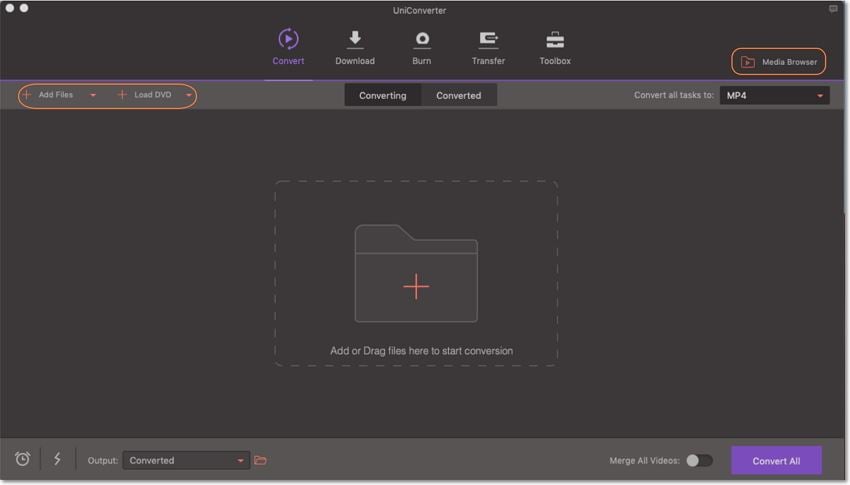
Open Finder, and then locate and drag the VIDEO_TS folder containing your VOB files to this VOB to iMovie video converter. All movie titles or just the main movie (depending settings in the Preferences) will appear in the item tray. To combine all VOB files, just check the "Merge All Videos" option at bottom of the user interface. Alternatively, you could also use "Load DVD" option to directly load DVD/IFO/ISO files to the converter.
Step 2. Select "iMovie" preset from output format list
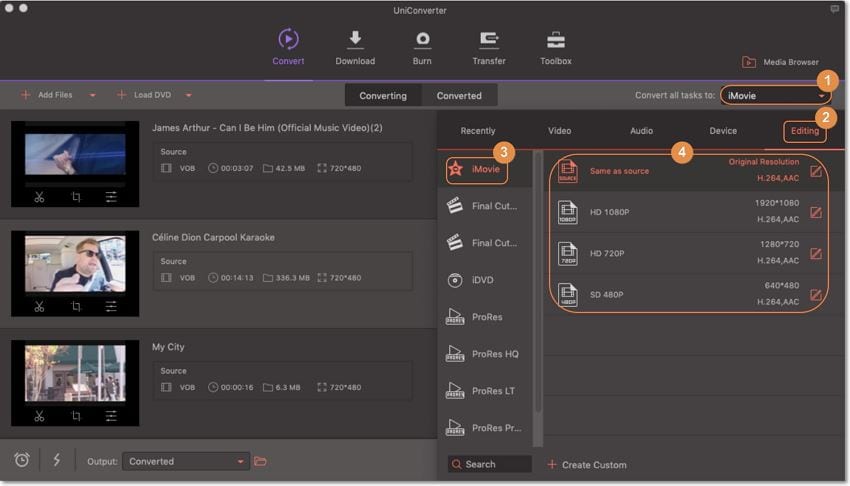
Go to the Editing category and click "iMovie" to set it as the output format. By selecting the "iMovie" preset, you don't need to adjust the video settings like video format, video resolution, frame rate and more by yourself.
Note: For Windows users, please select iMovie supported format in the Video tab, namely MOV or AVI.
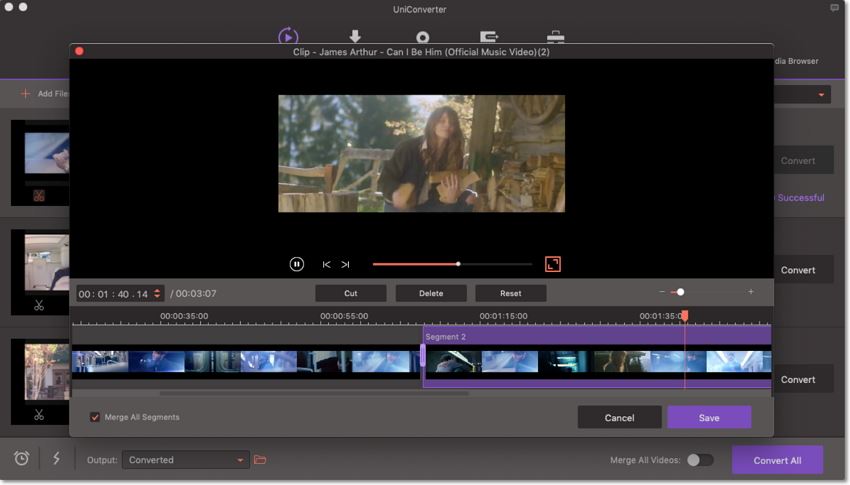
By the way, if you only want to import parts of the DVD movie into iMovie for further editing, you can trim the very parts before iMovie VOB files conversion. To do so, directly click the Edit icon under the VOB video you want to edit. In the open up window, click the Add trim marker button to add markers to the play bar and then drag the markers to set the start point and end point. When done, click Save button and go back to the main window, where you could see several video parts, you could convert them one by one or use "Merge All Videos" button to combine into one video.
Step 3. Start VOB to iMovie conversion
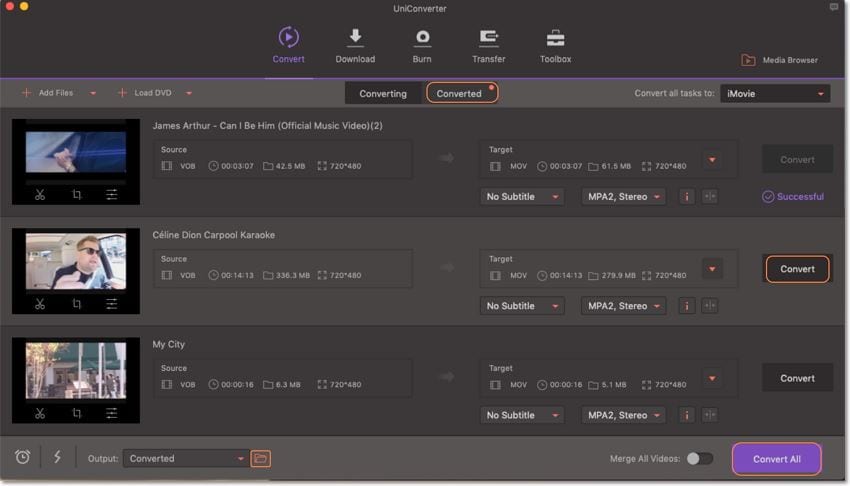
This VOB files to iMovie converter will convert VOB files rapidly, preserving 100% original quality. When finished, the output file is ready for being imported to iMovie for editing. All iMovie versions are supported, including iMovie '11, iMovie '09, iMovie '08, and iMovie HD.
Step 4. Import the converted VOB to iMovie
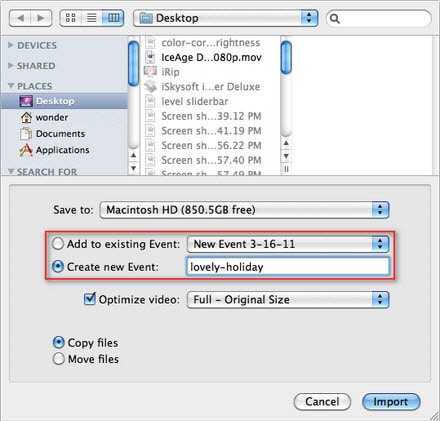
Finally, launch iMovie. In iMovie, go to the File menu, choose Import > Movies, and then navigate to the folder that your output VOB files are saved. Select the files and click "Import". The default folder for the output files is /Users/YOURHOME/Movies/UniConverter. This folder can be changed to any folder you want by the Output option at bottom.
More Tips about iMovie
iMovie is a video editing software developed by Apple for use on Mac and iOS devices. It is the default editing application in Mac computers. The iMovie allows users to imports videos and photos from a hard drive and later edit them using various features and tools available.
Import Videos from iPhone: Earlier version of iMovie didn’t support direct transfer of iPhone videos to iMovie but nowadays it is very much possible to download and edit videos from iPhone very easily.
Use of Inspector: It is a powerful feature that allows you to adjust various settings of your videos like speed and preferences.
Facebook Integration: iMovie works well with social networking sites like Facebook. You can easily import your photo gallery once you have synced the iPhoto feature of iMovie you’re your Facebook account.
Track Characters Easily in a Movie: With the help of people finder feature; one can easily identify persons appearing in a movie.
Edit Videos Side by Side: With iMovie, you can open two movies simultaneously and change the layback option to side by side and edit them.
iMovie Supported Formats:
The iMovie supports a number of formats like MP4, MOV, MPEG-2, AVCHD, DV, HDV, AIC, JPEG, AAC, etc. iMovie doesn’t support VOB files even though it is based on MPEG program stream because it contains one or several audio tracks and subtitle streams multiplexed together into a single form which makes it difficult to playback and edit.
There is no VOB codec available in iMovie which could encode VOB files for iMovie. To use these files in iMovie, you would need to convert them into an iMovie supported format with the help of a converter tool like UniConverter. Free download it if you like it!
Brian Fisher
chief Editor