Ease to Use DVD Burning Software to
Burn Any Video to DVD
Easy powerful DVD Toolbox meets all Your Needs
Go to Windows 

Enhance and Burn Video to DVD with Ease
Burn Any Video File to DVD
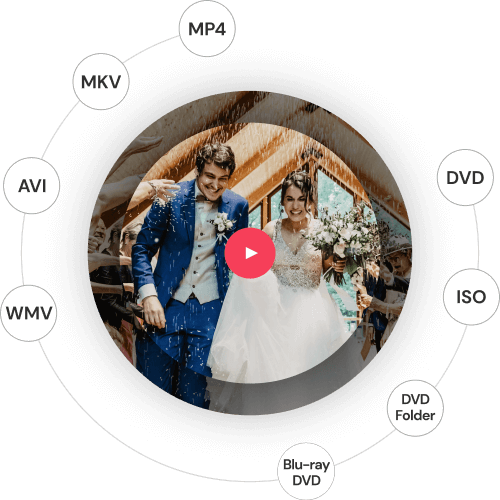
Support burning videos in 150 formats to DVD/DVD folder/Blu-ray DVD folder/ISO/Blu-ray disc, like MP4 to DVD, MKV to DVD, AVI to DVD, and more.
Support Popular Disc types: DVD-5 and DVD-9; DVD+R/RW, DVD-R/RW, DVD-R DL, DVD+R DL, BD-R, BD-RE, BD-25, DVD-RAM; BD-50, BD-100.

Burn Music to CD
Burn music to a CD in just few simple steps.
Powerful CD Burner for Windows 10, 8, 7, and XP.
Burn MP3 and all other audio formats to a CD.
CD ripper function makes it easier to rip CD.
Easy Video Editing with Built-in Video Editor
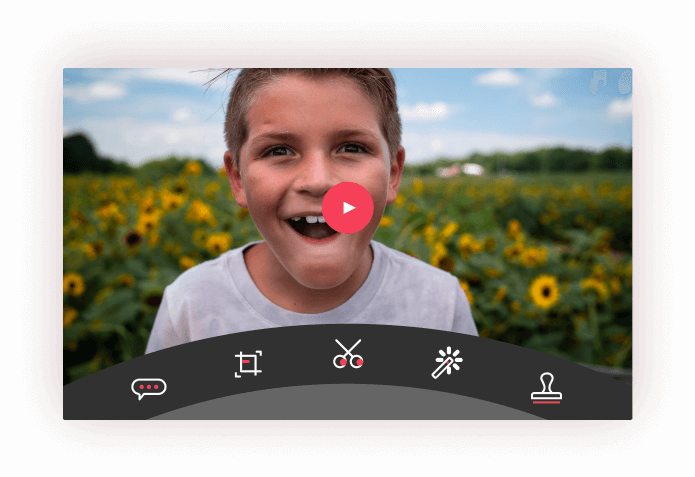
Crop: Crop videos to the target size to fit your screen.
Enhance: Adjust video brightness, and apply special video effects for a better visual experience.
Watermark: Add image or text watermark to video for copyright protection.
Subtitle: Add subtitles to your DVDs, including .srt, .ass and .ssa extensions.
Burn Data Disc from
Video/Music/Image in 3 Steps
Burn different files to Data Disc, such as videos, images, and music files.

Step 1. Drag and drop videos or
photos to the DVD Creator.
photos to the DVD Creator.

Step 2. Personalize your DVD menu
templates according needs.
templates according needs.

Step 3. Preview and burn
videos or photos to DVD easily.
videos or photos to DVD easily.
Smart Utility Toolbox

DVD to Video Converter
Convert DVD to videos like MP4,
AVI, MKV, and any other formats
AVI, MKV, and any other formats

Burn to Data Disc
Burn files to Data Disc for safe
backup.
backup.

ISO to DVD
Burn ISO files to DVD with ease.

Photo Slideshow Maker
Easily create photo slideshows
with music.
with music.

Video chapters
Add chapters to a long video.

Video Editor
Crop, add subtitles, apply effects
and further easy video editing.
and further easy video editing.

DVD to DVD Converter
Copy DVD to ISO files or DVD
folder.
folder.

CD Burner
Burn music to a CD/DVD.

Make Your DVD Special with Free
DVD Menu Templates
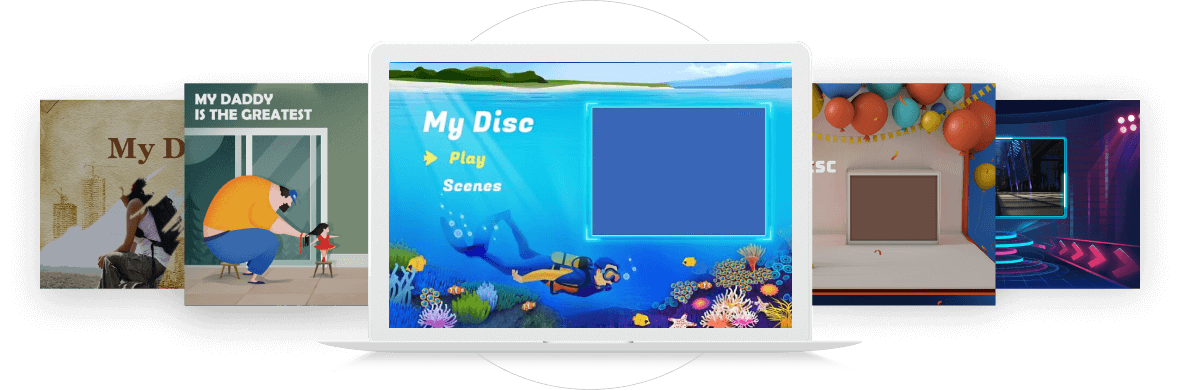
This DVD burner software for Mac provides you with free DVD menu templates that let you easily find a template that perfectly fits the theme of your DVD
movie. You can make your DVD menu more impressive using Dynamic templates and custom background image and music. It is easy to customize the
menu template by editing background, text, thumbnail and creating new chapter. You can also download more amazing DVD menus for your theme,
including holiday, family, nature, and more.

Smart DVD Burner without Limitation

Create Photo Slideshow with Music
Easily create fantastic slideshow with music. Then you can burn the slideshow with video files to DVD for sharing with your family and friends.

Make DVD Movies from Web Videos
Convert downloaded videos or movies from YouTube, Facebook, Google, Vimeo, torrent sites like Vuze, and more to DVD.

Burn Home Movies to DVD
Easily burn any home movies or recorded family videos with iPhone, iPad, cameras and camcorders to DVD.