


Part 1. Step-by-Step Guide on How to Use Safari
#1. Reset Safari
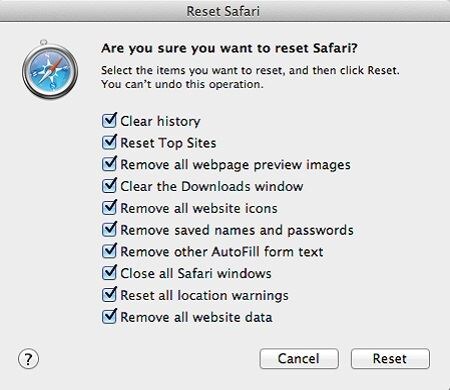
This is straightforward, with a single consideration we will cover at the end. Firstly launch Safari, from your dock or home screen, then look for Safari within the Safari Menu that is located at the top of the screen. This brings out a dropdown menu, with several options available, choose the option called Reset Safari. From here you will get a warning dialogue informing you what items will be removed. Select Reset from the menu to finish the process, Safari will resart automatically. Be sure you do not need the settings that will be deleted before doing this.
#2. Make Safari Default Browser
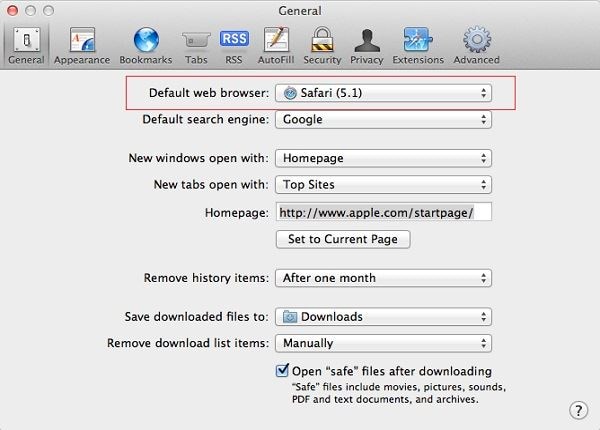
From within Safari itself, simply go to Safari Menu, select Preferences, then General, and set Default Web Browser. It is worth noting that some browsers automatically check for this on launch and can interfere with the settings, so if you have other browsers on your system make sure they are set to "Don't Check Default Status" to avoid the problem.
#3. Clear Cache in Safari
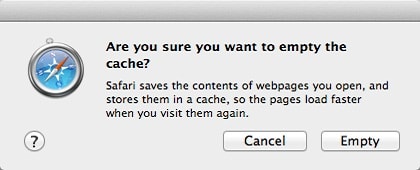
For some reason, this option is hidden within the developer menu, however it is still a simple task to accomplish. From the Safari Menu, select Preferences, then the Advanced Tab, this activates the Develop menu, simply go to that and select Empty Caches.
#4. Clear Cookies in Safari
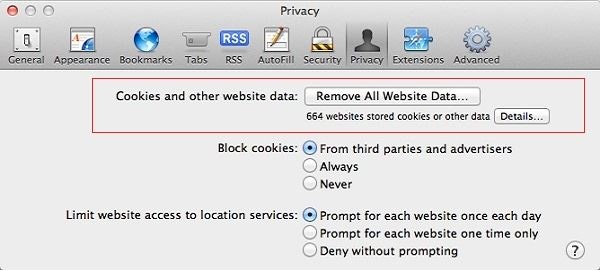
There are two ways to accomplish this, firstly, from inside Safari, go to the Safari Menu, then Preferences, and then the Privacy Tab. Choosing Remove all Website Data removes all cookies from your device. You can also get the same result from choosing Reset Safari from the Safari Menu, and deselect every option but Remove All Website Data, once you are certain that is the only option ticked, hitting Reset will remove all cookies from the Safari install.
#5. How to Enable Cookies in Safari
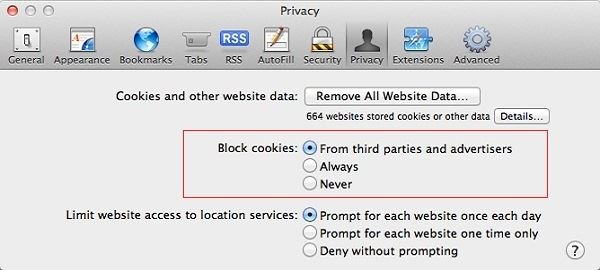
From the Safari Menu, select Preferences, then Privacy, and then look at the option Block Cookies. Setting this to Never means all cookies are accepted, although you could experiment with selecting From Third Parties and Advertisers which will still restrict certain types of cookies but should allow most websites to function as intended.
#6. Clear History in Safari
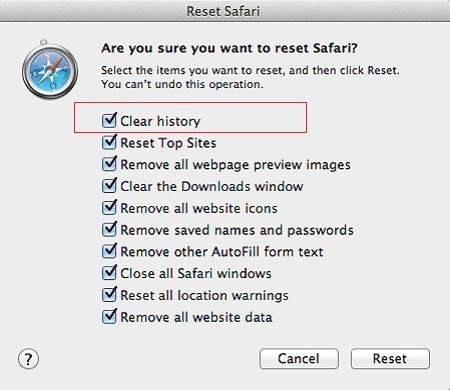
You can accomplish this by choosing Reset Safari from the Safari Menu, and deselect every option but Clear History, once you are certain that is the only option ticked, hitting Reset will clear the history from the Safari install.
#7. Change Safari Home Page
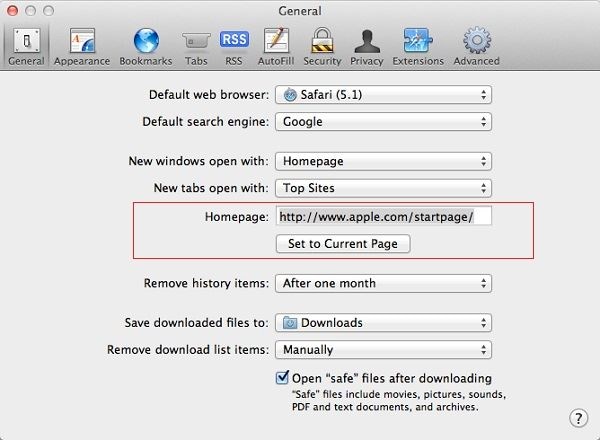
From the Safari Menu, select Preferences, then General, and then look at the option Homepage. Here you can type in the address of the page you wish to be your new Homepage, or you can hit the button below marked Set to Current Page to make the webpage on the current active tab your Homepage.
#8. Safari Bookmarks
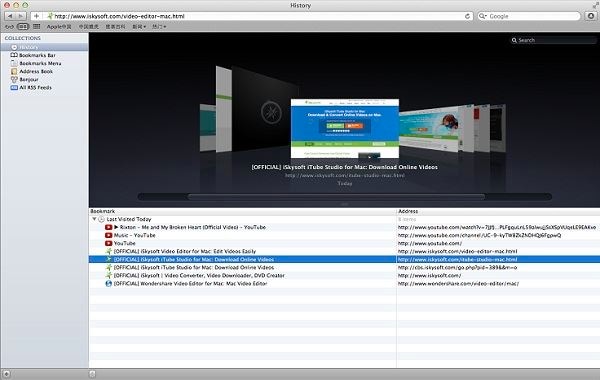
Bookmarks are great, but can become unwieldy quickly as the number of them mount. Managing Bookmarks, creating folders and so on for better organization is thankfully very simple. Simply going to the Bookmarks Menu at the top of the window and selecting Show All Bookmarks brings up the bookmarks pop out often called the Safari Sidebar. From here you can add, delete and move bookmarks, create and delete folders and generally organize your bookmarks exactly as you want.
#9. Safari Private Browsing
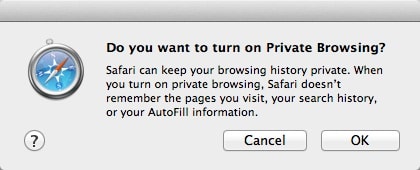
Private Browsing is another great feature within Safari, in this mode your browsing isn’t added to history, the same with any searches made and so on. To activate it simply go to the Safari Menu, and choose Private Browsing. One slightly annoying factor here is that Safari will throw up a dialogue box every time you do this to make sure you definitely want to go to Private Browsing. A handy tip here to avoid that is to hold down the Option Key whilst selecting Private Browsing activates it immediately and avoids the dialogue.
#10. Safari Activity Window
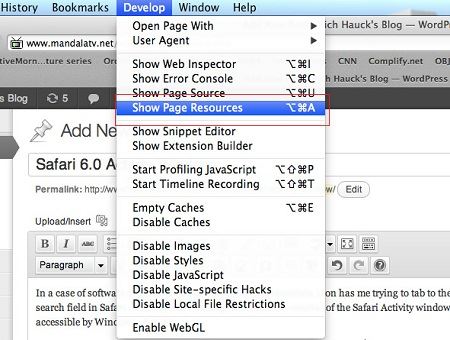
A much loved feature during the many iterations of Safari, the activity window has come and gone with various versions. Although it disappeared seemingly for good in Safari 6 and hasn't returned with 7, you can approximate the tool by using the Safari Menu, select Preferences, then the Advanced Tab, this activates the Develop menu. Then using Develop choose Show Page Resources. This is actually a far more in depth tool, perhaps a little too involved for most uses, opening the tool before opening the site to be examined reduces the clutter and allows you to get the information you were after.
Part 2. Top Safari Problems and Solutions
#1. Safari is Running Slow
There are a couple of issues that could be at fault here, first off by using the Safari Menu, you can select Preferences, followed by the Advanced Tab, this activates the Develop menu, simply go to that and select Empty Caches. This may solves the slowdown, but if not another common cause can be a plugin that is incompatible or just not working correctly. Going back to Preferences and selecting Security, you can deselect Allow all other plugins to disable all plug ins. Restart Safari and see if there is an improvement. If there is you have found the cause of your problem and you can then restart each plugin in turn to find the one that was causing issues.
#2. Facebook Not Working on Safari
The main culprits here are your install needing an update or Cookies. Check for updates in the usual manner. Enable Cookies by going to the Safari Menu, select Preferences, then Privacy, and then look at the option Block Cookies. Setting this to Never enables cookies and should fix Facebook issues.
#3. Safari Cannot Download This File
This usually occurs when you try to download file types that are specifically prevented by Apple. A good example is an app package outside the App Store, Safari will always display this message under those circumstances, and the answer is to find the file within the app store itself, because most of them are usually in there somewhere.
#4. Safari Not Responding
This one is usually caused by a conflict, and the root cause is often an extension or another program or app. Disabling extensions can let you see if that is the cause, if not, you can ensure nothing else is running when you launch Safari and see if that makes a difference. Once you have narrowed the cause down to an extension, or a piece of software, it is then a process of elimination to find out which one it is, by restarting each one in turn and seeing what effect they have on Safari.
#5. Safari Cannot Open Page
This is usually caused by a conflict with something running in Safari. From your Safari Menu choose Safari then Preferences then select the Extensions tab. If there are any extensions installed, turn them off and then restart Safari and try the website again, if this doesn’t work you can repeat this by disabling all plugins to find the conflict.
#6. Safari Will Not Load
This is another that can be caused by Extensions, go to your Safari Menu choose Safari then Preferences then select the Extensions tab and disable all of them there. If this fixes things, enable each one in turn to find the culprit, and check for updates to that extension to solve the problem.
#7. Netflix Not Working on Safari
The first thing you need is the Silverlight plugin, assuming you have installed this, one of the main issues seen with Netflix is permissions for the plugin to run. At the Netflix page itself, go to Safari Menu, then choose Preferences then the Security tab and pick Manage Website Settings. In the pop out dialogue, choose the Silverlight plugin. Under Currently Open Websites will be the tab for the Netflix player. Choose Allow Always and this should solve the issue.
#8. Safari Won't Play Videos
This is very likely to be an issue with Flash Player. Go to adobe site and install the latest Flash player to solve this.
#9. Safari Quits During a Session
This one can be solved by emptying the cache, it is well worth doing this as part of a maintenance routine to ensure good performance. You can do this by going to Safari Menu, choosing Preferences, and then Advanced Tab, this brings out the Develop menu, then open that and choose Empty Caches.
#10. Safari Won't Start
This usually stems from the software needing an update, the best course of action here is to go to the Apple icon on the top left of your screen, and choose software updates. Make sure any that apply to Safari are checked and hit install.