


Have bought a new iPhone X or iPhone 8 and would like to transfer your iPod music to your new iPhone? I know that many people have used iPod as a device to save songs. If you don't know how to transfer music from iPod to iPhone, or share songs between iPod and iPhone, this is the right place you're in. Here are the 2 ways for you to achieve your goal.
- Part 1: Transfer All iPod touch Music to iPhone X/8/8 Plus/7 Plus/7/6 Plus/6/5s/5c/5/4s/4 (Quick, and Flexible Way)
- Part 2: Copy iTunes Store Purchases from iPod to iPhone via iTunes
Part 1: Transfer iPod non-purchases and Purchases to iPhone
Apple iTunes is able to help people copy songs and playlists to iPod. However, when it comes to transfer songs from iPod to iTunes or any other Apple device, iTunes doesn't work so nicely. It only transfers iTunes Store purchased songs from iPod to iTunes. As for non-purchased ones, like free music downloaded from apps or shared from friends, you either give up transferring them or use dr.fone - transfer songs, playlists, videos and photos from iPod to iTunes, computer and to iPhone.
1 Click to Transfer Songs from iPod to iPhone
dr.fone is the best iTunes companion to do what iTunes can't, helping you enjoy an easy mobile life!
- 1 click to export all songs from iPod to your iPhone without a hitch.
- Transfer songs and playlists (smartplaylists included) from iPod to iTunes with play counts and ratings;
- Export songs, videos, and photos from iPod to computer, iPad, and even Android phones;
- Import songs, videos and photos to iPod without erasing any existing data (especially helpful for people who have several devices and several computers)
Tutorial on How to Get Music from iPod to iPhone
Step 1: Launch dr.fone
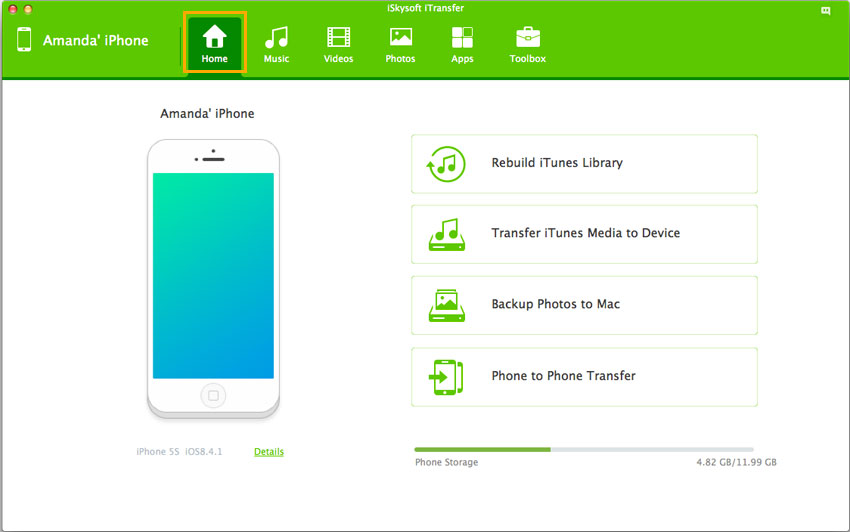
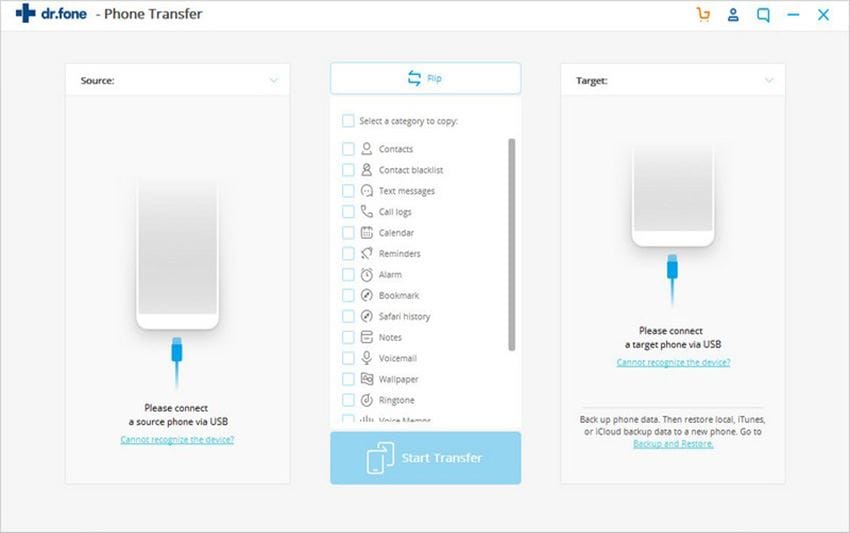
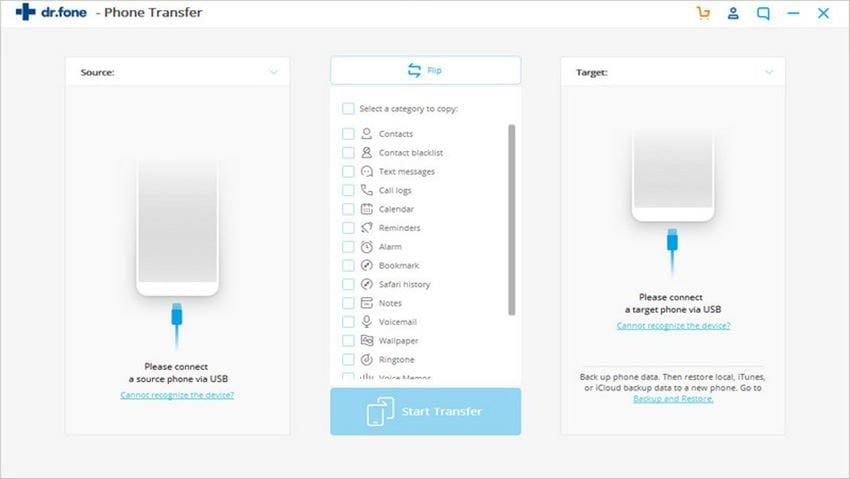
dr.fone has seperate version for Windows PC and Mac. Both of them are able to help you copy songs from iPod to iPhone. You need to install dr.fone on your computer and launch it. After then connect iPhone and iPod with your computer via USB cables at the same time. Next, click "Phone to Phone Transfer".
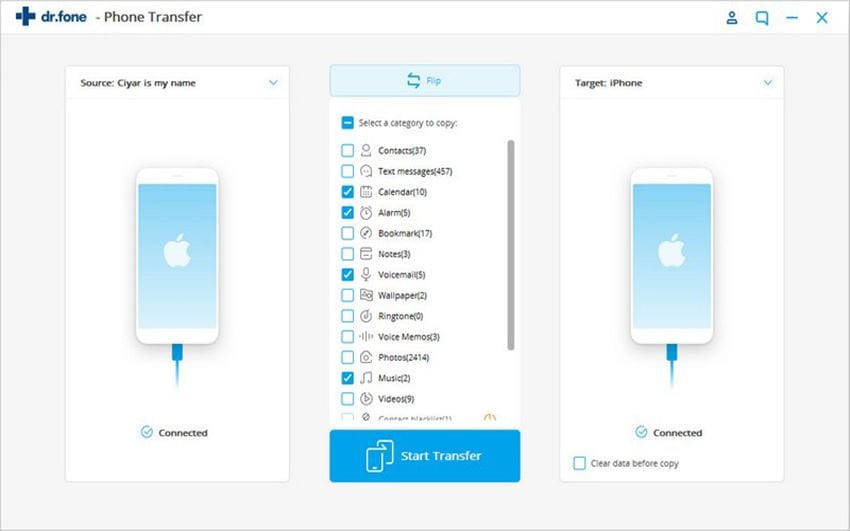
Step 2: Start to transfer iPod music to iPhone
In the next window, you should make sure the source phone and target phone. If not, you should close the window to switch them on the top left of the window on dr.fone. And then, click "Next" to let the software scan the files on your source phone.
Step 3: Transfer music from iPod to iPhone
After the scan. you can see all media file types are displayed in the main window. Next, you should click to select file types to transfer them from iPod to iPhone. Click "Transfer" to let the software do the rest for you.
Part 2: How to Copy iTunes Store Purchases from your iPod to Mac
1. Go to iTunes.
2. Select Authorize Computer in the Store menu.
3. In the appeared dialog, the Apple ID option has been selected by default. If you own an AOL account, select AOL.
4. Input your Apple ID or AOL screen name and password, then click the Authorize button.
If the iTunes Store purchases on your iPod or iPhone were purchased with multiple accounts, you will need to authorize the computer for each one.
5. Connect your iPod or iPhone to the computer. If you have synced iPod with another iTunes library, the following dialog may appear:
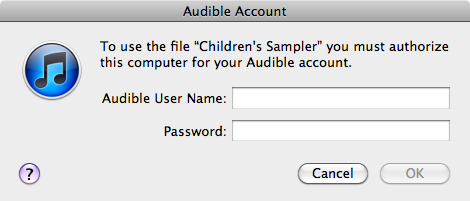
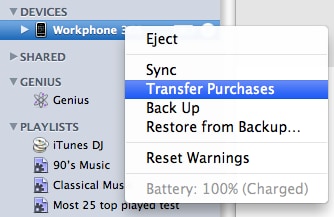
6. Click the Transfer Purchases button. Or you can right-click (Windows or Mac) or Control-click (Mac only) your iPod in the iTunes Source list, then choose Transfer Purchases from the shortcut menu that appears.
Note: If you would like to import all movies and music as well as iTunes Store purchases or other sources, or you only would like to copy parts of movies or music to iPhone but not would like to replace the original contents, go to Part 1!
