

It took just several steps when you want to use your iPod with two or more iTunes libraries. This article detailed introduces the process of using iPod with multiple iTunes libraries, and it works whatever the iPod is iPod, iPod shuffle, iPod mini, iPod touch, iPod nano, or iPod classic. It includes two parts:
- Method 1: Copy iTunes Store purchases from iPod to iPod
- One Click to Transfer Music from Old iPod to New iPod
Method 1: Copy iTunes Store purchases from iPod to iPod
•Open iTunes.
•In the Store menu, select Authorize Computer. In the pop-up dialog, the Apple ID option has been selected by default. Suppose that you have got an AOL account, choose AOL. Input your Apple ID or AOL screen name and password, then click the Authorize button.
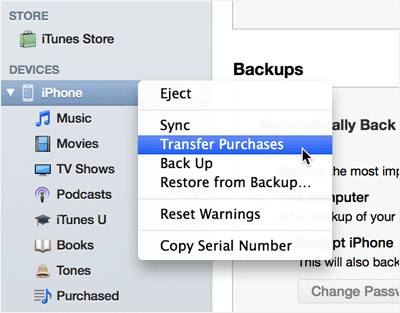
•Connect your iPod to the computer. Click the Transfer Purchases button, Or, you can right-click (Windows or Mac) or Control-click (Mac only) your iPod in the iTunes Source list, then choose Transfer Purchases from the shortcut menu that appears.
Note: If the iTunes Store purchases on your iPod were purchased with multiple accounts, you wi l need to authorize the computer for each one.
Well, you may be confused with those multiple steps and authorization things. To make the task simpler, you are highly recommended to the method 2 here, which is accomplished successfully and efficiently within two simple steps:
Method 2: One Click to Transfer Music from Old iPod to New iPod
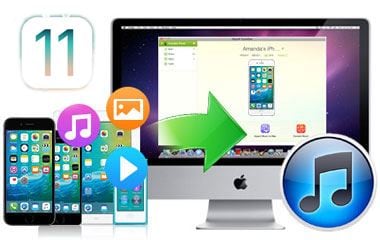
dr.fone is an user-friendly program that enables you to transfer your videos and songs to Mac without iTunes. You are able to copy movies and songs to Mac easily with only a few clicks, saving lots of trouble of changing the settings on your Mac.
Note: This smart application allows you to intelligently transfer your music from iPod touch to Mac without any duplicate contents. You can also easily transfer your videos, photos and other media files. It can perfectly support iOS 11 and the new MacOS 10.12 Sierra.
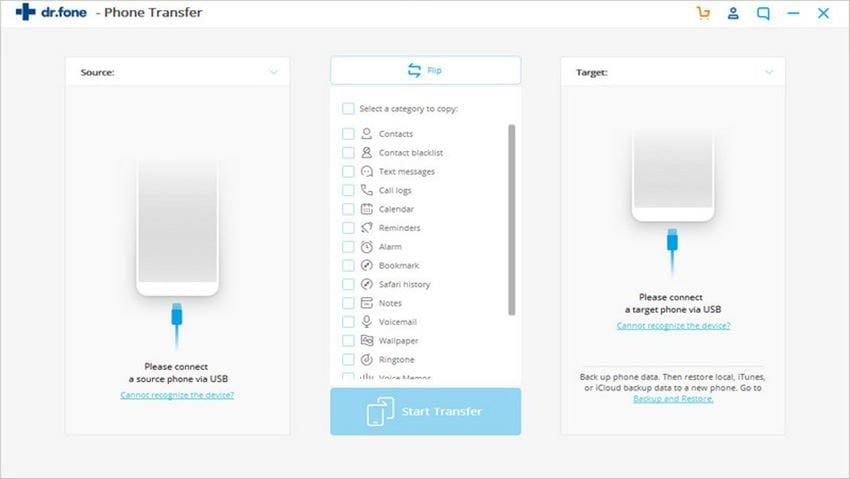
Step 1: Download and install dr.fone on Mac. Connect both your iPod to your computer with 2 USB cables at the same time. Launch the software. From the interface, click the "Phone to Phont Transfer" option.
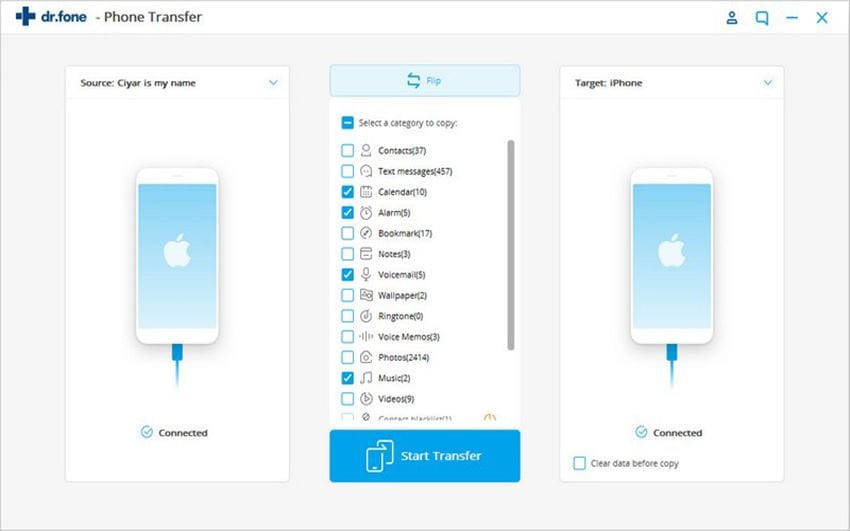
Step 2: Now click the drop-down list to choose your old iPod name (like "Amanda's iPhone" in the screenshot below). Click on the "Next" button.
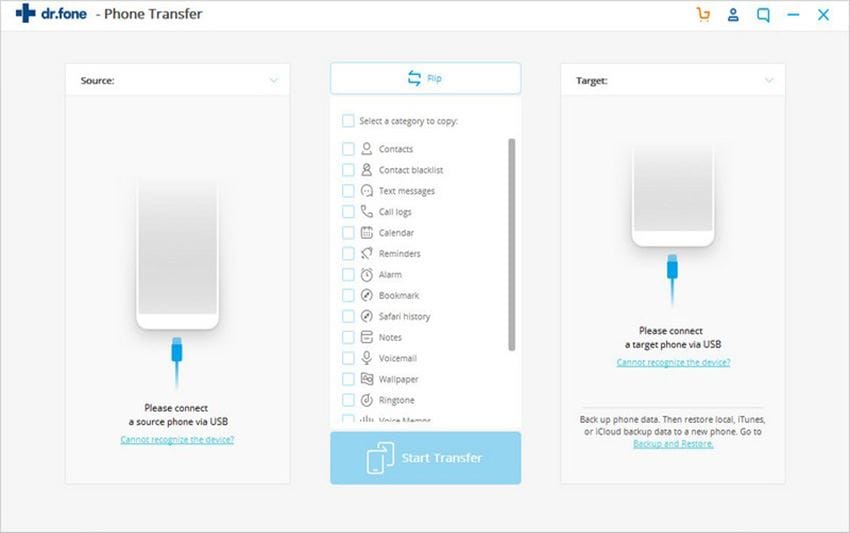
Step 3: Now as shown below, if you want to tranfer music from old iPod to new iPod, select the "Music" option. Correspondingly, choose other file types if you want to transfer. Then click on the "Transfer" button to proceed. Done! Just make sure the well connection between the iPods and the computer during the process.