


After you've made or bought ringtones especially for iPhone, you need to transfer them to your iPhones 4, iPhone 4S, iPhone 5, or any other iPhone. There are several iPhone owners who'll face issues while transferring ringtone from iTunes to iPhone 5 as they are not getting ringtone on their iPhone.
There are issues like, ringtones display in iTunes but will not get transferred to iPhone 5, or it is not synchronising iPhone 5 ringtones, or is incapable to transfer iPhone ringtones, or any other reason. Those who are puzzled by such issues will find this article quite helpful.
Before Transferring Ringtones to iPhone 5, Ensure
- The ringtone duration is less than 30s. iPhone only supports ringtones less than 30 seconds;
- Your computer has been authorized to play the ringtones, if not, scroll to the bottom of this article for detailed guide;
- The song fields (song name, artist, composer, etc) don't include special characters (like quotes);
- Your iPhone ringtone can show up in the iTunes library.
Transfer and Sync iPhone Ringtone
Those users who still are not able to transfer a ringtone to their iPhones even after sync need not worry because we have iSkysoft iPhone Ringtone Maker for Mac that is for Mac (Leopard, Snow Leopard exclusive) and offers Ringtone Manager that has the ability to transfer iPhone ringtones without iTunes. It allows you to delete and edit ringtones freely. It comes with 2 tabs where the left one offers list of iTunes ringtone and right one offers iPhone ringtone tab. It helps sync iPhone ringtones thereby making and managing ringtones without iTunes.
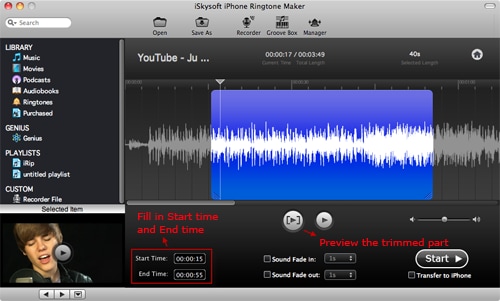
Ringtone Make and iPhone Transfer Features
- Refresh ringtone tab, including the name and time of your iPhone ringtone;
- Preview the iPhone ringtones (both in iTunes and iPhone list );
- Put iTunes ringtone to your iPhone by checking "Transfer to iPhone" under the Start button at the bottom right of the primary window, and vice versa;
- Directly delete your iPhone ringtones with Ringtone Manager;
- Sync iPhone ringtone, transfer iTunes library ringtones to iPhone without iTunes.
How can you authorize your computer to play iPhone ringtones
In case you've received iPhone ringtones from others or your another machine, you need to have the guarantee that you own the permission of using it and in case not, you require authorizing your Windows/Mac system first. For doing this, follow this guide: Launch iTunes on the computer that is to be authorized and head towards "Store > Authorize this computer...". That's it!