
iPhone's ringtones are M4R files which are different from other ringtones. They have M4R file name extensions with data encoding in the MPEG-4 codec while other ringtone files are usually in MP3 file container. The iPhone ringtones also have a different sound spectrum that other ringtones do. If you want to make iPhone ringtone from an other file format, you have to first convert the file to M4R.
.MP4 Versus and .M4R and .M4A File Extensions
We know that MPEG-4 Part 14 is one of the container formats. There may be video, subtitle streams or audio present. This makes it difficult to determine if the MPEG-4 file streams are using file names that use just the extension or something else. Users may suffer confusion when there’s failure to playback when they thought their apps supported the MP4 format.
Therefore, Apple has decided to use the .m4a extension to store audio files, so there's not as much confusion. Apps should support files in MP4 or M4A using the OS/iOS for video and audio playback. Lots of applications can use the MPEG-4 audio, so users can choose the extension they want when they make MPEG-4 files.
The M4R is an extension of MP4 just like M4A. You can use this extension and drag it onto iTunes and the ringtone will install and be recognized automatically. This allows you to sync it to the iPhone with ease. Good news is that we can convert video (include YouTube video) to M4R iPhone ringtone.
iPhone Ringtone Audio Specifications
Frequency: 20Hz to 20,000Hz
Audio codecs supported: AAC, Protected AAC, MP3, MP3 VBR, Apple Lossless, AIFF, Audible (formats 1, 2, and 3), and WAV.
iPhone Ringtone Type and Length
iPhone ringtone (including iPhone 6. iPhone 6 Plus, iPhone 5s, iPhone 5c, iPhone 5, iPhone 4S, iPhone 4, iPhone 3G, and iPhone 3GS) belongs to TrueTone type ringtone. It's similar to the audio files that are typically recorded to MP3, AAC, and WMA. The rise of iPhone ringtone represents the latest evolution of the ringtone. But what may decrease customer satisfaction is that iPhone ringtone can only support less than 30 seconds be default. Fortunately, it's not an impossible mission to get a longer iPhone ringtone. What you need is only a good enough ringtone creating software which enables users to make more than 30 seconds ringtones from any video/audio files.
How to Create iPhone Ringtone with Ease (iOS 8 Included)
As far as we know, Apple in fact enables users to make iPhone ringtones with the songs purchased on iTunes Store. However, by this way, you only are able to get your iPhone ringtones in the length of 30 seconds. Below I'll show you how to create iPhone ringtones and set them as your ringtones on your iPhone 6, iPhone 6 Plus, iPhone 5s, iPhone 5c, iPhone 5, etc.
- Part 1: Purchase iPhone ringtones from iTunes store
- Part 2: Activate iPhone ringtones
Part 1: Purchase iPhone ringtones from iTunes store
- Go to iTunes Store and log in with your username and password.
- Click Ringtones tab at the bottom of the screen.
- Search for the ringtone you want and preview it.
- Click the price icon to buy then follow-up prompts to finish purchasing.
Note: The iPhone ringtones you purchased are only with the length of 30 seconds. Actually, most of the iPhone ringtones are the songs you've purchased. Let me show you the truth: you pay for your purchased iTunes songs, and then you pay for the iPhone ringtones. You pay for twice. Since you have paid for the song, why can't you make your own iPhone ringtone with any song you want?
Part 2: Activate iPhone ringtones
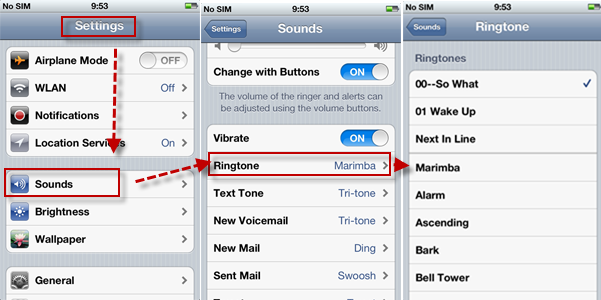
If you have purchased or created a ringtone for iPhone, import it to iTunes and sync the ringtone to your iPhone 6 Plus/6/5s/5c/5/4s/4. Afterwards, follow below steps to set your iPhone ringtone:
Open Settings menu and select Sounds, then choose your created ringtone under Ringtone option.
Note that you can use this way to set your Clock timer, incoming calls and Clock alarms.
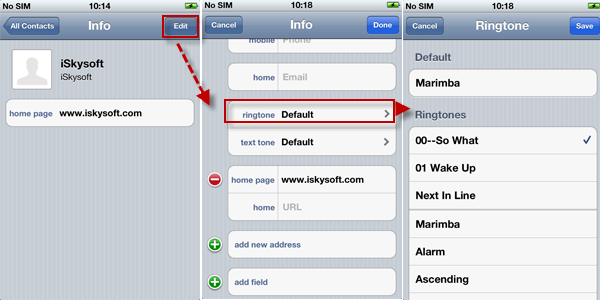
Furthermore, you can customize the ringtone for special persons. To do so, go to Contacts, choose a person, tap on Edit button, press on Ringtone and select your target one.