

Do You Want to Merge or Split MOV Videos?
Have some MOV video clips and want to merge them into a big one file for playback without any interrupts? Or in order to save space, you want to split a giant MOV file into several segments? You can do it now! This article is specially written down to tell you how to join MOV videos on Mac and how to split MOV file on Mac (Yosemite, Mavericks, Mountain Lion, Lion included).
- Part 1: How to Join MOV on Mac with Filmora Video Converter for Mac
- Part 2: How to Combine MOV Videos in Filmora Video Editor for Mac
- Part 3: How to Split a Large MOV File to Several Ones on Mac
Part 1: How to Join Multiple MOV Videos on Mac OS X 10.10

First and for the most, you need the MOV Video Converter for Mac for help. It is a professional app for merging for splitting MOV videos on Mac. Let's take a look at how to achieve your goal.
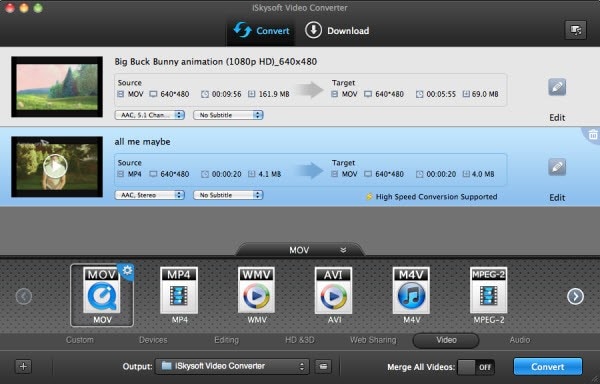
Steps to merge MOV videos with Video Converter

Part 2: How to Combine MOV Videos in Filmora Video Editor for Mac
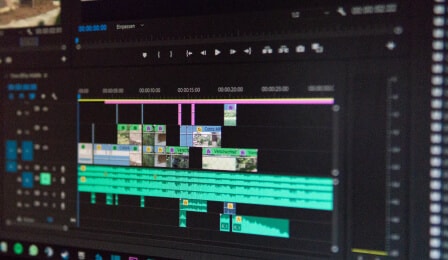
In addition to Filmora Video Converter for Mac, there is another solution for your reference - Filmora Video Editor for Mac, which helps you join multiple MOV videos into one with only a few simple steps.
Simple Guide to Join MOV Videos with Filmora Video Editor for Mac:
Step 1. Click the "+" button to import your MOV files to this program. Or you can directly add MOV videos by dragging and dropping as well.
Step 2. Drag and drop the videos to the timeline one by one or in batches.
Step 3. Now you should place all videos in right order as needed. If necessary, you are able to insert animated transitions between two clips, so as to make the change from one scene to another more artistic.
Step 4. After arranging all MOV videos, you can hit the "Export" option to export the video to any device as you want.
Part 3: How to Split a Large MOV File to Several Small MOV Video Files on Mac
Well, the above two tutorials aim to help you combine MOV videos, if you want to split a MOV videos to several ones, iSkysoft Video Converter for Mac can be always useful.
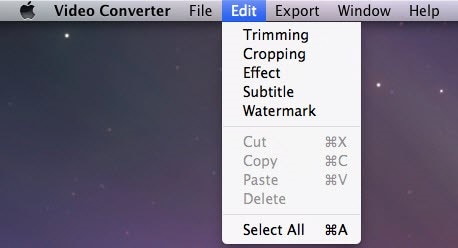
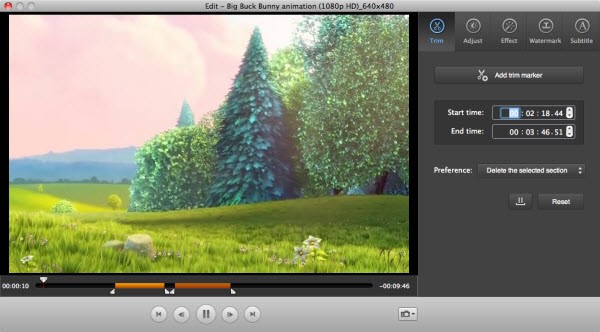
Steps to split MOV videos with Video Converter for Mac